
The ColdFront Allocation Management Portal
This page discusses the use of the ColdFront portal for managing allocations and projects on the UMD HPC clusters.
Overview of ColdFront
ColdFront is an open-source management tool for High Performance Computing originating from the University of Buffalo with contributions from other institutions (including the University of Maryland). At UMD, we mainly use it to allow users and PIs better insight into their allocations, and to allow PIs (and those they designate) the ability to better manage the users in their allocations.
At the heart of ColdFront are objects called "projects" and "allocations". Projects in ColdFront correspond to projects as we use the term at UMD although note that we have made some minor changes to our usage of that term with the transition from Deepthought2 to Zaratan (however, the basic concept is still largely the same). Projects basically represent a research group under a faculty member or prinicipal investigator (PI). Typically, a faculty member will have a single project for their research. They may have additional projects if they are teaching a course for which they have requested the use of HPC resources. They may also have an additional project if they are managing a College or Departmental level pool of HPC resources.
Projects are basically containers for allocations, which we discuss in more detail below. They also contain some information pertaining to the research going on in the research group, such as departmental affiliations, members of the research group, the primary type of research being done, and tracking grants, publications, and other research accomplishments. But primarily, they are containers for allocations.
Allocations in ColdFront represent resources on the cluster that have been made available to the members of the research group. These include allotments of compute power (measured in SUs (or more often kSUs), as well as allotments of disk space, either on the scratch storage tier or on the SHELL/medium-term storage tier. But in general they can represent any resource, and at a future date we might introduce allocations which grant their members access to certain software licenses.
Most allocations on Zaratan and other UMD clusters are simply allotments of compute,
scratch and SHELL storage. The compute resources will correspond to an
allocation account in Slurm to
which you can charge jobs against.
It is more difficult to attach files to a specific allocation, and so what we typically
do is sum the storage allotments from each allocation in the project (separately for
the scratch and SHELL storage tiers), into a total size for each of the two storage
tiers, and that becomes the usage limit (e.g. "quota") for that storage tier for
members of the project. The project will have a directory, under /scratch/zt1/project
for scratch space on Zaratan, and under /afs/shell.umd.edu/project for SHELL
storage, for storage for the project at that tier. E.g., if project "foo" on Zaratan has three
allocations, which provide 1 TB, 2 TB, and 4 TB of scratch storage, respectively,
there will be a /scratch/zt1/project/foo directory, with a quota of 7 TB (7 = 1+2+4).
The reason for multiple allocations is that the resources often come from different pools, with different expirations, constraints, and people in charge of allocating the resources in the pool. Most users will have an allocation from the Allocations and Advisory Committee (AAC), which includes a basic allocation to which all faculty are eligible, as well as any additional resources the AAC has authorized on the basis of their application for resources from the AAC. Some colleges and/or departments have pools of resources which they will distribute to PIs in their unit; if you have received resources from one or more of these units, each will show up as a separate allocation. Finally, if you purchased HPC resources directly from DIT, that will show up as a separate allocation.
Both projects and allocations have members. Allocation members are the people that can access the resources made available in the allocation. (Note: storage resources are normally made available to anyone ib any allocation in that project which provides storage resources for the tier in question.) The design of ColdFront is such that all members of any allocation under the project need to first be members of the project itself. Project members can have either of two roles: an "user" role, which is a normal user, or a "manager" role. Normally, only the PI owning the project has the "manager" role, but the PI can promote any other project user to "manager" (or demote a manager back to standard user). Users with the "manager" role can act on the PIs behalf to manage the project and any allocations it contains, including tasks like:
- adding/removing users as members of the project. (The PI owning the project cannot be removed)
- promoting/demoting users as managers of the project. (The PI owning the project cannot be demoted).
- adding/deleting users as members of any allocation contained in the project.
- updating the project description, field of science, publications, research output, etc.
Accessing/Logging Into ColdFront
Users of the UMD HPC clusters can access ColdFront using the URL https://coldfront.zaratan.umd.edu. You must be on the campus GlobalProtect VPN in order to access this URL.

You will be asked to login; click on the login button and login with your standard campus username and password. You will then be presented with your home screen:

This is your home screen in ColdFront. The blue section on top is a menu which will appear on most
if not all pages. The Home button (labelled 1 in the image) will return
you to this page from any page in the application.
The Center Summary menu item (labelled 2 in the image) will open a page
which displays various statistics about the cluster as a whole, mainly the number of allocations,
projects, and similar.
The Project dropdown will give you a choice of some options, the ones of most
interest are Project and Allocations. Clicking on these will
result in a more detailed listing of all projects and allocations, respectively, to which
you belong. You could get to the same listings by clicking on the Projects (labelled
as 6 in the image) or Allocation (labelled as 8) links,
respectively.
The Help button (labelled as 4 in the image) will link you to the HPC web pages.
The linked to the far right of the top menu with your username in it (tptest in the
exampile in the image, labelled 5)) is a drop down allowing you to see and edit your
user settings, and/or logout of ColdFront.
Underneath the Projects heading (labelled 6) is a list of
projects to which you belong. Clicking on the Project header will open a
page with a more detailed listing of your projects. In the example shown in the image,
the user belongs to a single allocation named test. Clicking on the project
title (labelled 7 in the image) will open up a
page with details about the project.
Underneath the Allocations heading (labelled 8) is a list of
allocations to which you belong. Clicking on the Project header will open a
In the example shown in the image, there is only a single allocation, in the project
test with the resource Zaratan Quarterly (Cluster Partition)
(labelled 9 in the image), and has a status Active (labelled
10). Clicking on the status button will open up a
page giving details about the allocation. The color and text
of the allocation will change if the allocation is approaching or past its expiration
date.
Usage, by role
This section discusses the usage of ColdFront from the perspective of different roles an user might have. 1. For normal users/members of projects or allocations. 2. For PIs and Project managers. 3. For College/Departmental Pool Managers.
ColdFront for normal users
This section discusses the usage of ColdFront for normal users, i.e. members of projects or allocations.
For normal users, the only real use of ColdFront is view the allocations to which you belong, and the main value of that is to easily see the resources granted to said allocations and what the usage is.
ColdFront Usage for PIs and Project Managers
This section discusses the usage of ColdFront for PIs and project managers, specifically how you can:
- View information regarding your projects.
- View information regarding your allocations.
- Manage users for your projects.
- Manage managers for your projects.
- Manage users for your allocations.
- Update publications and research output for your projects.
Please remember that to grant someone access to the resources allotted to you on the HPC cluster, you need to add that person first to your project, and then to all allocations underneath that project.
Adding a person to a project does not directly grant them access to any resources on the HPC clusters. However, it is a prerequisite for adding them to an allocation. Adding someone to your project (without adding them to an allocation as well), does not even get them access to log into the HPC cluster.
Adding an user to an allocation grants them access to use
the resources allotted to that allocation. This includes
access to the login nodes of the cluster, access to the
Slurm pallocation account](/kb/glossary.md#account)
containing the compute time allotted to the allocation, and
access to the storage (both scratch and SHELL) allotted to the
allocation. (Actually, because storage is typically shared across
all allocations underneath the same project, adding someone
to any of your allocations will typically grant them access to the
entire storage allocated to all allocations under that project).
But compute time is allotted separately to each individual
allocation account, and the user must
specify the allocation account to charge a job against
at job submission time.
We strongly recommend that you keep the membership lists for all allocations underneath the same project in sync; i.e. if you add someone to one allocation you add them to all.
ColdFront for Pool Managers
Thus section discusses the usage of the ColdFront portal for managers of resource pools at the college or departmental level. Currently, the main use of ColdFront for College/Departmental Pool managers is to view information about the projects and allocations for PIs with allocations form your pool. This will include information about their publications and other research outputs, as well as being able to see information about resource usage for their allocation over the past year or so.
College/Departmental Pool managers currently should have been granted access to view information about all Projects and Allocations. We request that you respect the privacy of others and only look into Projects and Allocations belonging to PIs that have allocations from the pool you manage.
Unfortunately, we are unable to provide you a nice summary page for all allocations coming out of your pool at this time. Indeed, it is currently less intuitive than desired to even allow you to view the Projects and Allocations of PIs who have an allocation from your pool. The following sections describe how to access such.
Pool Managers: Viewing a Project
To view a project of a PI who has an allocation from the pool that you manage, please take the following steps:
- From the main top menu bar, under the
Projectsdropdown menu, select theProjectsmenu item. This will open a page that looks like this - Expand the
Filterblock, and click on theShow all projectscheck box. You will probably want to enter the PI's last name or username to restrict the number of entries shown. When ready, click theSearchbutton. Remember to check theShow all projectscheckbox. - The list should show all Projects to which the specified user(s) belong. Find the appropriate entry in the list, and click on the link for the ID number.
- You should now be on the summary page for the project. This page is described in the section discussing the Project summary page From here you can see the members of the project, the allocations belonging to the project (and open the Allocation view pages for specific allocations), as well as the publications list, etc. for the Project.
Pool Managers: Viewing an Allocation
There are two ways to view an allocations carved out of the pool that you manage.
First, you can follow the steps above to view the Project belonging to
the PI owning the allocation, and then you can go to the portion of the page listing the
Allocations belonging to the Project, and click the link in the
Actions column to open the Allocation view page
for that Allocation.
Alternatively, you can follow the steps below:
- From the main top menu bar, under the
Projectsdropdown menu, select theAllocationsmenu item. This will open a page that looks like this. - Expand the
Filterblock, and click on theShow all allocationscheck box at the bottom. You will probably want to restrict the list of allocations shown. We suggest you either:- Enter the username of the PI or another member of the Allocation. This will restrict the list to Allocations to which the specified user is a member.
- Set the dropdown for
Allocation Attribute Nametoslurm_parent_account_name (Text), and set the value ofAllocation Attribute Valueto the name of the Allocation representing the pool you manage. (This can be found by looking at the Allocation attributeslurm_account_namefor the Allocation in the Project. It is normally the lowercase 3 or 4 letter abbreviation for the college/department, e.g. aosc, astr, biol, engr, ipst, etc). This will return a list of all allocations carved from the specified pool.
- Remember to check the
Show all allocationscheckbox. - The list should show all Allocations matching the filter (e.g. all allocations to which the speicfied user belongs, or which were allocated from the specified college/departmental resource pool). Find the appropriate entry in the list, and click on the link for the ID number.
- You should now be on the summary page for the allocation. This page is described in the section discussing the Allocation summary page
ColdFront Usage by Task
This section discusses how to use ColdFront to accomplish various tasks.
Viewing a project
Your home page displays a brief list
of projects to which you belong under the Projects
heading (labelled 6 in the image). By clicking on
the title of the project, you will open a page showing detailed
information about the project.
If you click on the Projects heading (labelled 6)
on your home page, or select the submenu item Projects from
the Project drop-down (labelled 3) on the
top menu bar, a page will open up with a more detailed list of
projects you belong to.

Normally, people should only be in a small number of projects, so this
list should usually not be very large, but if it is
there is a Filter
button (labelled 1 in the image) which you can click on which
will let you apply filters to the list. Otherwise, this list prints the
ID number (not really useful), the username of the PI of the project,
the title of the project, the field of science for the project, and its
status. If you click on the ID number of the project (labelled 2
in the diagram) it will open up the same project detail page that would
be opened if you clicked on the title of the project in the home page.
The Project Detail page is discussed below. The top of the page
looks like:

The title of the project is displayed at the top of the page (in this
case test, labelled 1).
For managers and PIs of the project, the next section is the
Manage Project section (labelled 2). Non-managers
will not see this. It contains several buttons managers can use
to manage the project:
Update Project Information(labelled3in the screenshot). Clicking on this will open a page which allows managers to edit various aspects of the project, including the title, description, departments, and field of science.Archive Project(labelled4in the screenshot). This should not be used.Add Users(labelled5in the screenshot). Clicking on this button will bring up a page which add/delete/manage users to the project- The
Add Grant(labelled6),Add Publication(labelled7) andAdd Research Output(labelled8) buttons will bring up pages allowing managers to update information about the research accomplishments of the project
The next section lists some general information of project, including
the name of the PI of the project (in this case Tom Payerle,
labelled 9), the description of the project (in this
case the unusually brief test, labelled 10),
the field of science for the project (in this example Other
labelled 11). Also included is a list of department(s)
the project belongs to: a project can have a single primary department,
and any number of secondary departments. The primary department
code is displayed in normal text, and any secondary departments in
italics. In the screenshot, the primary department is
UMD-IT-Information Technology and no secondary projects
are shown (labelled 12). The project status (in the
screenshot Active, labelled 13) and the
creation date (Aug 18, 2022 in the screenshot, labelled 14)
are also displayed.
The next section lists the users which belong to the project, as shown
below:

The boxed subscript (labelled 1 in the screenshot) gives the
count of the users in the project. The buttons Email Project
Users (labelled 2), Add Users (labelled
3) and Remove Users (labelled 4) are
only visible for managers of the project, and will open pages to allow
manage the users for the project.
- The rest of the section lists the various users in the project. The
Username,Name, andEmailcolumns- should be self-explanatory. The
Rolecolumn lists the role - of the user:
User- This is the role for normal users. Typically most of the members of the project will have this role.
Manager- This is the role for the PI of the project, along with anyone the PI has delegated management authority to.
The Status column lists the status of the user, which typically
should be Active. The Enable Notifications column,
labelled 5 in the screenshot is an on/off checkbox that indicates
whether the user should receive emails for certain events (like allocation
expirations, etc) occur. Finally, the Actions column will be
empty unless you are a manager of the project. If you are a manager of the
project, you can click on the icons under that column, it will open a
page allowing you to change the role of the given user
The next section lists all of the allocations belonging to the project, as shown:
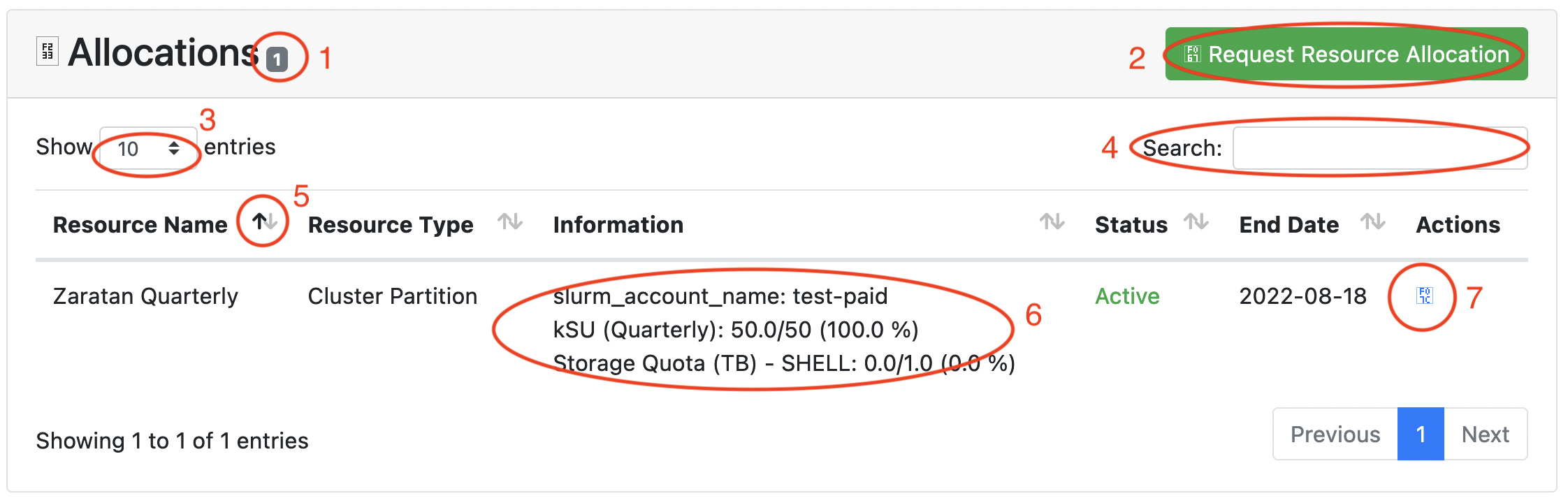
The number labelled 1 gives the count of allocations in the
project (in this case 1). The button Request Resource Allocation
(labelled 2 in the screenshot) is only shown to managers, and
if pressed will open the
Allocations and Advisory Committee's
application page. The item labelled 3
controls how many allocations are displayed per page, while the search box
(labelled 4) allows you to search for/only selected
allocations; since it is unlikely for any project to have more than a handful
of allocations these are probably not very useful for UMD users.
The rest of the section basically displays the various allocations belonging
to the project. The up and down arrows (e.g. labelled 5 on
the screenshot as well as on the other column headers) allow you to change
which column the rows are sorted on (as well as the direction of the sort).
The information section for the allocation (labelled 6 in the
screenshot). This list some details about the allocation --- these are
discussed more in the
section about view allocation information.
The icon under the Actions column (labelled
7 in the screenshot) will link to the
allocation detail view page for the allocation.
The next sections list various information regarding the research products generated by the project.
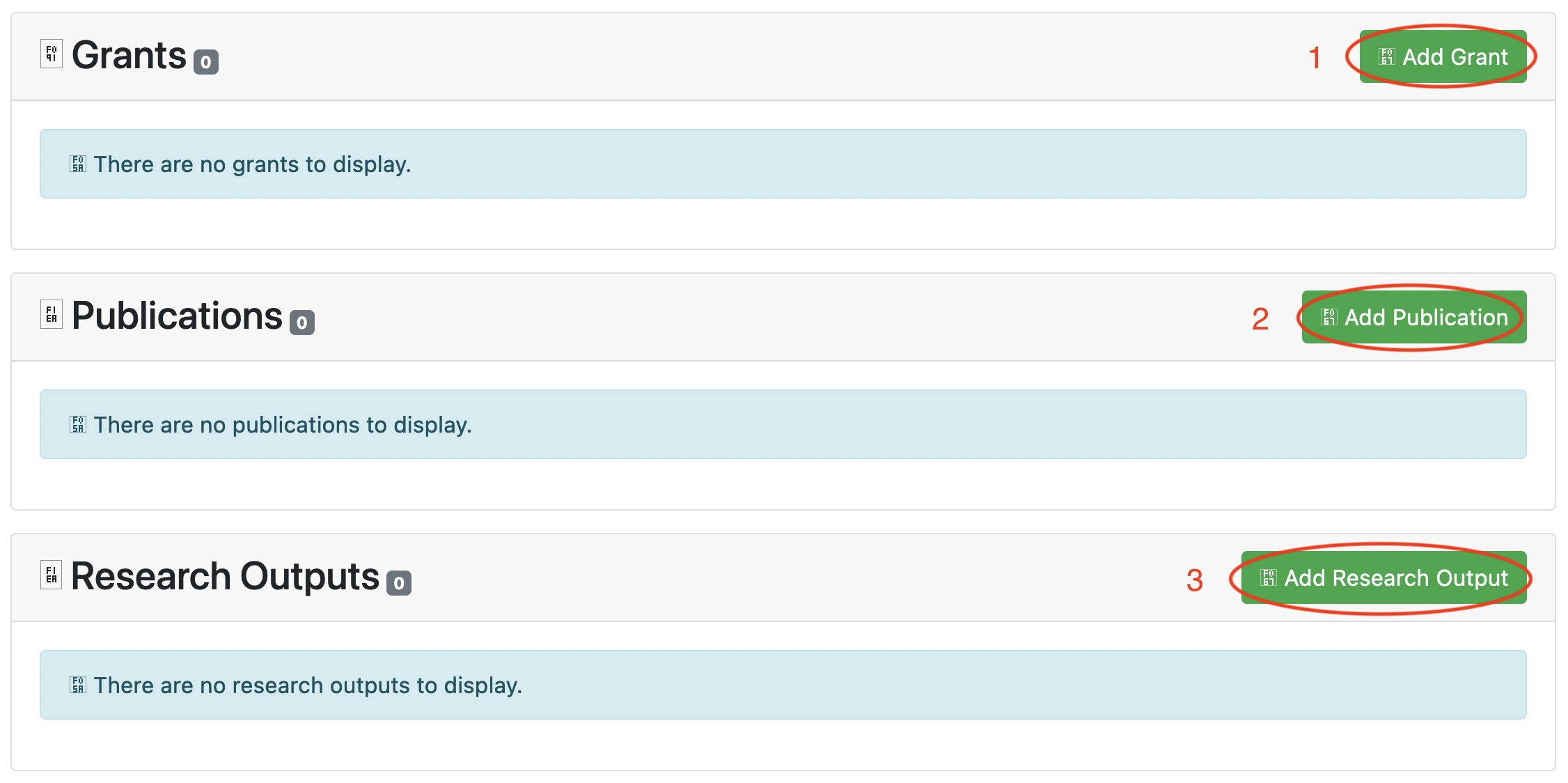
This includes a list of grants awarded to the
the research team, a list of publications produced, and a list of research
outputs (basically any products of the research that are not publications).
The buttons Add Grant (labelled 1),
Add Publication (labelled 2) and
Add Research Output (labelled 3) are only visible
to managers of the project, and allow them to
update the research products of the project](#proj-update-research)
The final section of the project detail page is a listing of notifications for the project. These are messages sent from the managers or systems staff.
Viewing an allocation
Your home page displays a brief list
of allocations to which you belong under the Allocations
heading (labelled r86 in the image). By clicking on
the Status of the project, you will open a page showing detailed
information about the allocation.
If you click on the Allocations heading (labelled 8)
on your home page, or select the submenu item Allocations from
the Project drop-down (labelled 3) on the
top menu bar, a page will open up with a more detailed list of
allocations you belong to.

Normally, people should only be in a small number of projects, so this
list should usually not be very large, but if it is
there is a Filter
button (labelled 1 in the image) which you can click on which
will let you apply filters to the list. Otherwise, this list prints the
ID number (not really useful), the title of theaproject containing the
allocation, and the username of the PI of that project, the name of one
of the first resource for the project, the status of the project (which
typically should be Active), and the end date/expiration date
of the allocation. If you click on the project title (labelled
3 in the screenshot), you will
open the project detail page for the containing project.
If you click on the ID number of the allocation (labelled 2
in the screenshot) it will open up the same allocation detail page that would
be opened if you clicked on the title of the status button on the home
page.
The Allocation Detail page is discussed below. After the usual page header, the page shows information about the allocation, like below:
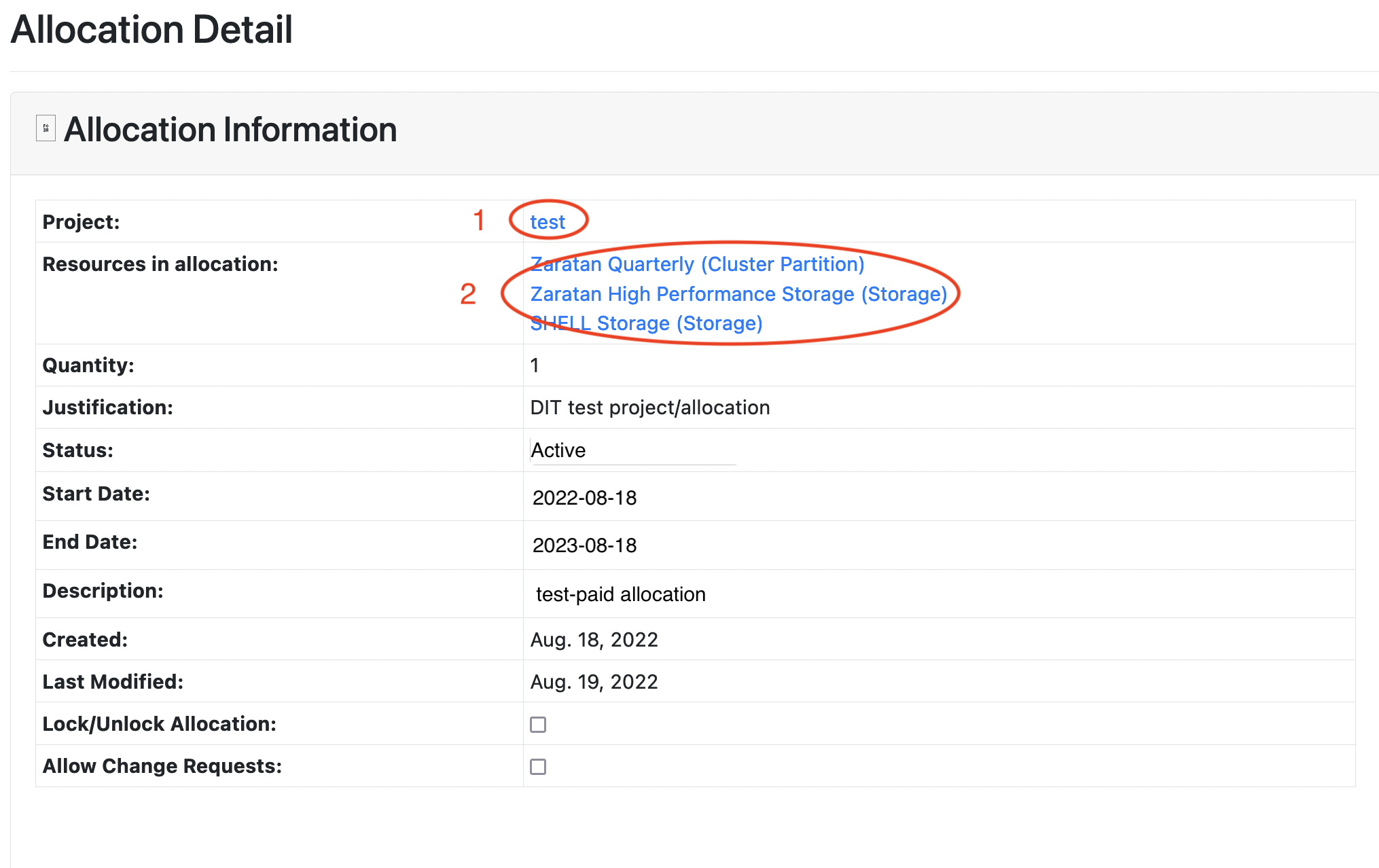
The first line gives the title of the project containing the
allocation, in this case test labelled 1. Clicking
on that link will open the project detail page for
the containing project. The next line lists the resources (as defined
by ColdFront) for the allocation, labelled 2 in the screenshot.
Clicking on one of them would show more information about the resource,
but that information is not usually very useful to the normal user. The
resource list will typically include a compute resource (Zaratan
Quarterly (Cluster Partition) in this example, indicating an allocation
on the Zaratan cluster that gets updated four times a year. Some allocations
will be listed as annual, and the cluster will be Zaratan or whatever cluster
the allocation is for). The Zaratan High Performance Storage (Storage) resource indicates an allotment of storage on the
[% INCLUDE glossary_term term="scratch" text="scratch storage tier" %], and
the SHELL Storage (Storage) resource represents resources
on the [% INCLUDE glossary_term term="shell-fs" text="SHELL storage tier" %].
In the future, there may be some allocations representing access to
licensed software.
The Quantity field is normally set to one and is not really
relevant in our setup. The Justification field is a short
note explaining why the allocation was created. The Status
field gives the status of the allocation, and should normally be
Active. The start and end dates indicate the dates on which
the allocation was awarded, and when it expires. The Description
field gives a bried description of the allocation.
The next section lists various attributes of the allocation, as shown below:

Attributes define the specific properties of the allocation. Some of these also have usages associated with the. The most relevant are:
- slurm_account_name
-
This gives the name of the Slurm allocation account associated with the allocation. This value should be unique for every allocation in the cluster.
- slurm_parent_account_name
- This gives the name of the Slurm allocation account
Which is the parent of the Slurm allocation account given by the
slurm_account_nameattribute. It will not be present if there is no parent. - unix_group
- This defines the Unix group associated with the allocation. Multiple allocations can share this value --- indeed, generally all allocations in the same project will share this value. Any user who belongs to any of the allocations with a specific value for this parameter will be made a member of the named Unix group.
- kSU (Quarterly)
- This value gives the number of kSU
to be allotted to the
named Slurm allocation account specifed in
slurm_account_name. These SUs are allocated at the start of each quarter for the lifetime of the allocation (and expire at the end of the quarter). An allocation normally will only have this orkSU (Annual), not both. The usage associated with this attribute is the number of kSU for this allocation that were used in the current quarter. - kSU (Annual)
- This value gives the number of kSU
to be allotted to the
named Slurm allocation account specifed in
slurm_account_name. These SUs are allocated when the allocation is awarded, and expire when the allocation expires. Normally, an allocation will either have this orkSU (Quarterly), not both. The usage value associated with this attribute is the number of kSU used since the allocation was granted. - Allocation SHELL TB
- This gives the amount of SHELL storage
(in TB) contributed to the project by this allocation.
Typically, each allocation in the project is allotted some amount of
SHELL storage, and these are summed to generate the total SHELL storage limit
for the project. The total SHELL storage limit is listed in the
Storage Quota (TB) - SHELLattribute. The usage value for this attribute is effectively the amount of this storage allotment that has been used; this is calculated by computing the percentage of the total storage limit for the project thta is used, and applying that percentage to the contribution from this allocation. - Storage Quota (TB) - SHELL
- This gives total limit of SHELL storage
available to the project.
The limit is typically generated by summing the values of the attributes
Allocation SHELL TBfor every allocation in the project, therefore this attribute will normally be copied on every allocation in the project. The usage value for this attribute is the total amount of SHELL storage usage by the project. - Allocation HPFS TB
- This gives the amount of high performance/scratch
storage contributed to the project by this allocation.
Typically, each allocation in the project is allotted some
amount of scratch storage, and these are summed to generate the total SHELL
storage limit for the project. The total scratch storage limit is listed
in the
Storage Quota (TB) - HPFSattribute. The usage value for this attribute is effectively the amount of this storage allotment that has been used; this is calculated by computing the percentage of the total storage limit for the project thta is used, and applying that percentage to the contribution from this allocation. - Storage Quota (TB) - HPFS
- This gives total limit of HPFS/scratch
available to the project.
The limit is typically generated by summing the values of the attributes
Allocation HPFS TBfor every allocation in the project, therefore this attribute will normally be copied on every allocation in the project. The usage value for this attribute is the total amount of scratch storage usage by the project. - kSU.Q1, kSU.Q2, kSU.Q3,kSU.Q4
- These give the compute usage by quarter for the past year or so. The kSU.Q1 value gives the compute usage for the most recent first quarter in the past, and similar for other quarters. E.g., during 2024Q4, kSU.Q4 will show the results for 2023Q4 (as 2024Q4 is not finished), and kSU.Q1 through kSU.Q3 will display the values for 2024Q1 through 2024Q3. Once 2025Q1 starts, kSU.Q4 will display the values for 2024Q4, and so forth.
- scratchTB.Q1, scratchTB.Q2, scratchTB.Q3, scratchTB.Q4
- These give the peak scratch usage by quarter for the past year or so. Like with kSU.QN above, these rotate every quarter so the the one with the QN suffix shows the values for the most recent completed Nth quarter (never counting the current quarter).
- shellTB.Q1, shellTB.Q2, shellTB.Q3, shellTB.Q4
- These give the peak SHELL usage by quarter for the past year or so. Like with kSU.QN above, these rotate every quarter so the the one with the QN suffix shows the values for the most recent completed Nth quarter (never counting the current quarter).
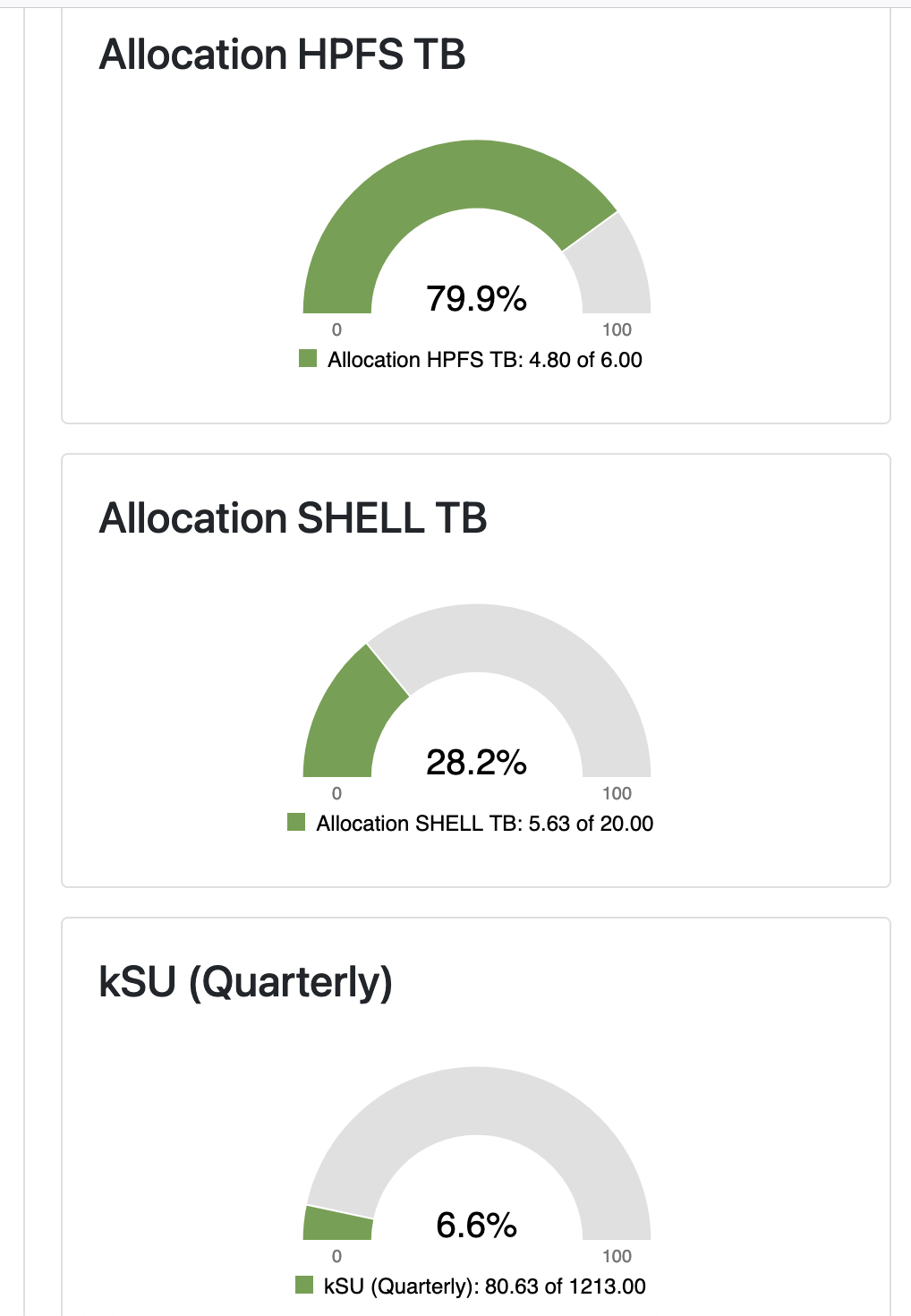
The next section displays the usage of the various attributes above which have usages in a graphical format, as show below. The colors of the graphs change from green to yellow to red.
Beneath that graphical display of attributes is a list of users in the allocation, like shown below:
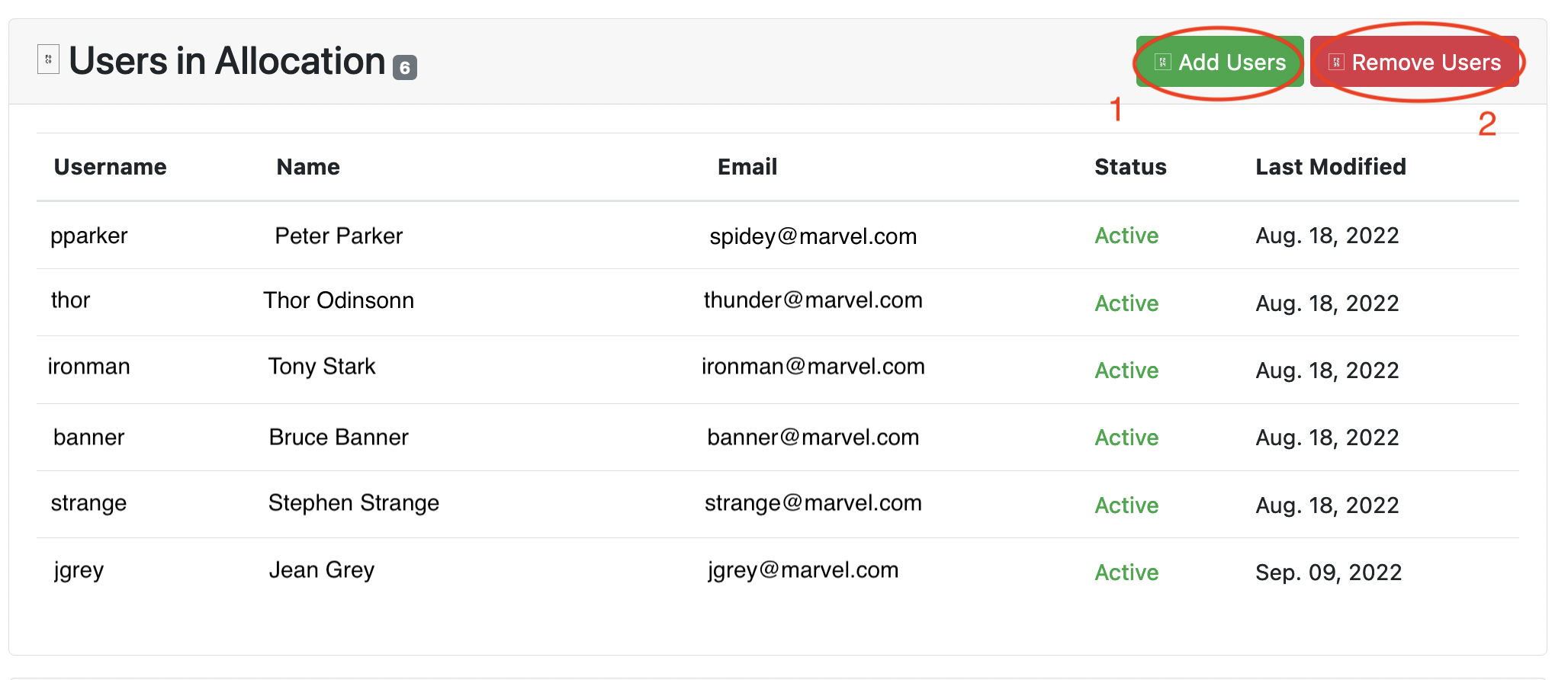
The buttons Add Users and Remove Users (labelled
1 and 2 in the screenshot) only appear to people
who are managers of the project containing the allocation, and they
aptly enough allow the manager to
add and delete users from the allocation.
The rest of the section is a list of
usernames, real names, and email addresses of the members of the allocation.
After that is a section listing notifications from systems staff.
Adding/Deleting/Modifying the Userlist for a Project
Warning
Adding someone to your project alone does not grant them access to the cluster; in order to grant someone access to the cluster you must:
- First add them to the project
- Then add them to one or more allocations underneath that project.
Adding someone to your project mainly confers on them the ability to be added to allocations under the project and not much else.
Managers for a project are able to add and remove users from the project (the PI of the project cannot be removed). People in a project can have one of two roles:
- Manager
- Managers of the project are able to add and remove users from the projects, as well as update the research products
- User
- The user role is for normal members of the project. There is not much direct benefit for an user being added to a project; it gives them access to view the project in ColdFront, but it does not directly give them access to any resources on the cluster --- such access only comes from being a member of an allocation. However, the design of ColdFront is that only members of a project can be added to an allocation inside that project.
When a manager opens the project detail view page,
they will see buttons to add or delete users for the project. The
Add Users button opens a page like
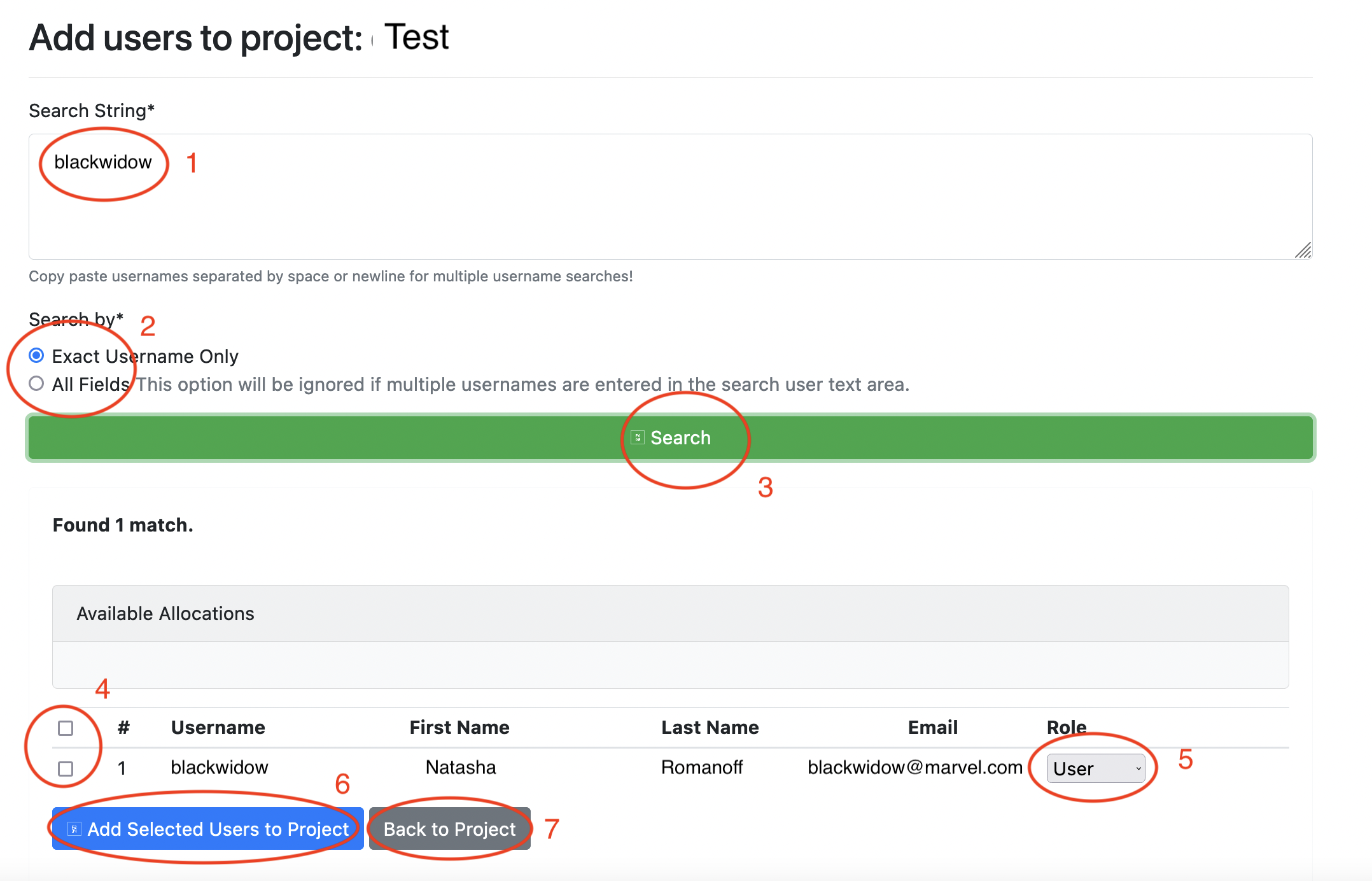
To add users to the project, the manager should enter the username (i.e.
the part of the new users @umd.edu email address to the left of the
at sign (@)) in the search box (labelled 1 in the screenshot,
and then press the search button (labelled 3). You can enter
multiple user names in the search box to add multiple users in one go.
Alternatively, you can enter the first or last name of the person you
wish to add, and then check the box All Fields (labelled
2 in the screenshot; the default is Exact Username Only). When you click on the Search button (labelled
3), the system will search for the user in the UMD campus
LDAP.
Once you do the search, a list of matching users will be shown. Note: users already in the project will not be displayed, in particular if you give the username of someone already belonging to the project, it will display no matches found.
There are check boxes to the left (labelled 4 in the
screenshot); you can select which individual users you wish to have added,
or select the checkbox in the header line to select all of them. You can
adjust the role of any user using the drop down labelled 5 in
the screenshot. Once all is set, click the Add Selected Users to
Project button (labelled 6) or click the
Back to Project button (labelled 7 to abort.
If a manager clicks on the Remove Users from the
Users section of the Project detail page,
it will open a page like:
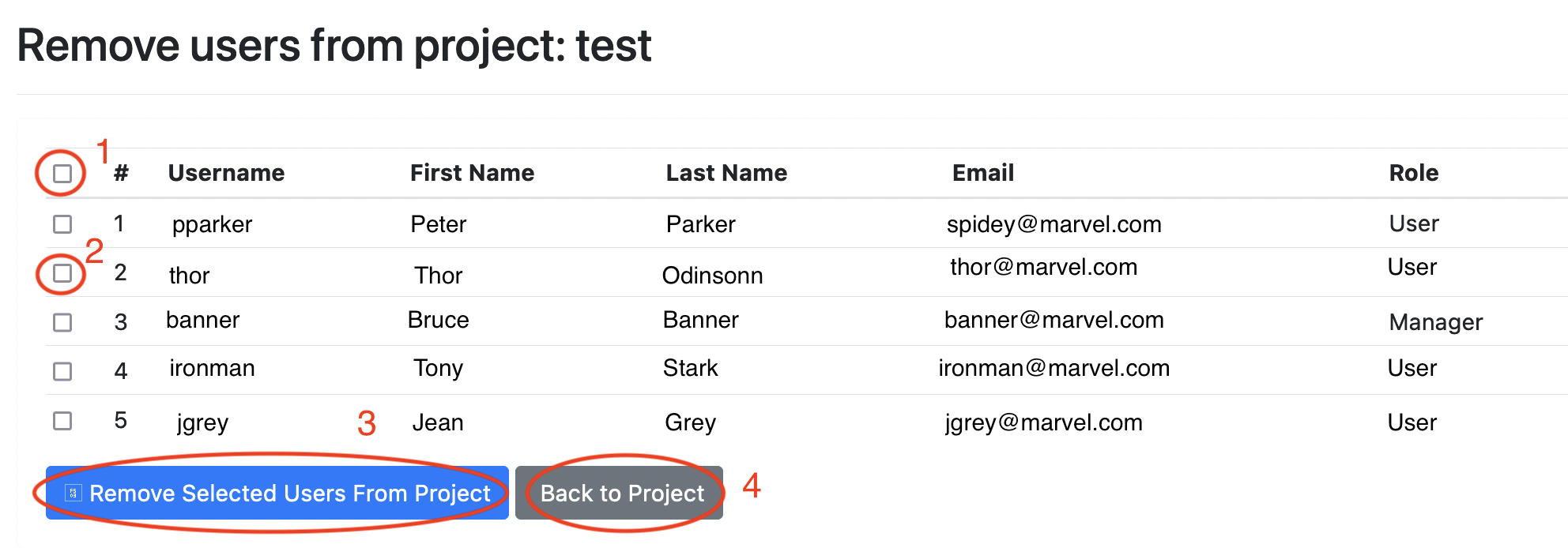
A list of members of the project will be displayed (not including the
PI of the project, since the PI cannot be removed from the project), along
with their usernames, names, email, and role. To the left of each user
is a check box (lavelled 2 in the screenshot), selecting that
will select that user for deletion. A similar checkbox in the header
(labelled 1 in the screenshot) will cause the checkbox for all
users to be selected. Once you have selected the users to delete, you can
click the Remove Selectede Users From Project button
(3 in the screenshot) to remove them, or click the
Back to Project button (4) to return to the
project detail page.
Unfortunately, there does not appear to be a simple way to change the role of an user after they have been added. The best solution is probably to delete and re-add the user.
Manage managers for your projects
This is essentially the same as managing users for the project, but just uses the role "Manager" instead of "User".
The ColdFront GUI does not currently allow for directly changing the role of existing members of the project, so to change an existing User to a Manager (or an existing Manager to an User), you should first delete the existing entry for the user and then immediately add it back in the proper role. Doing so will not trigger any issues with the person's access to the cluster, etc.
Adding/Deleting Users for an Allocation
Managers for a project are able to add and remove users from the allocations contained in the project. In order to have access to the cluster, a person must be belong to an allocation on the cluster. Membership in an allocation confers athe ability to submit jobs charging against the Slurm allocation account associated with the allocation. Generally, storage is combined for all allocations inside a project, with each allocation contributing some amount of storage to the limit for that tier. Any user in any allocation contributing to that limit has access to the storage.
Although membership in a project does not directly grant any real privileges to an user (other than being able to view the project in ColdFront), membership in the project is required before an user can be added to an allocation.
When a manager opens the allocation detail view
page, they will see buttons to add or delete users for the project. The
Add Users button opens a page like
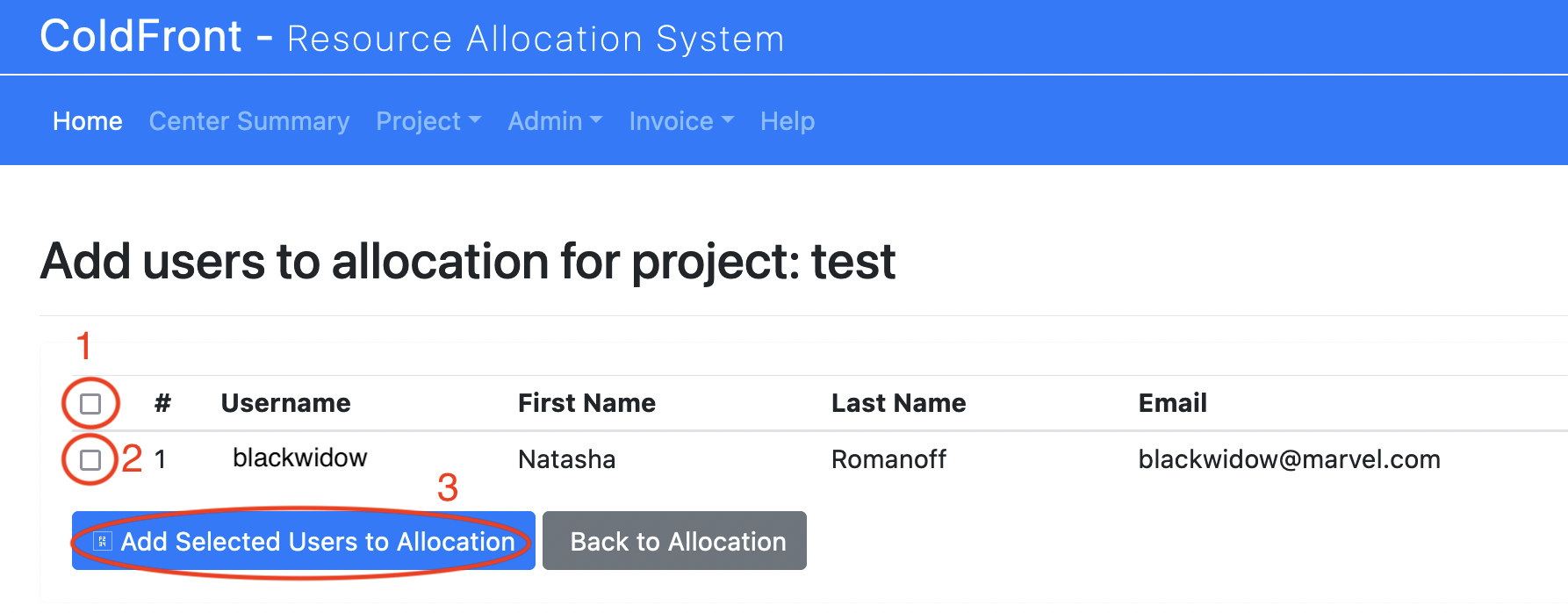
This page will list all users who are members of the project containing
the allocation but are not members of the allocation. You can click
the checkbox next to the username (labelled 2 in the screenshot)
to add that user to the allocation, or you can click the checkbox in
the header (labelled 1 in the screenshot), and then click
on the button Add Selected Users to the Allocation (3
in the screenshot). Once you click that button, the selected users will
appear as members of the Allocation in ColdFront. Backend code will
run within about an hour to do any provisioing, etc., needed to grant
them access to the cluster and to the specified allocation.
Note
In order for an user account to be created on the cluster, the user must have an activated Glue/TerpConnect account If they do not have one, an email will be sent to the user explaining how to request activation of their account.
When a manager Remove Users button on the
allocation detail view [age,
a page will open like shown below:
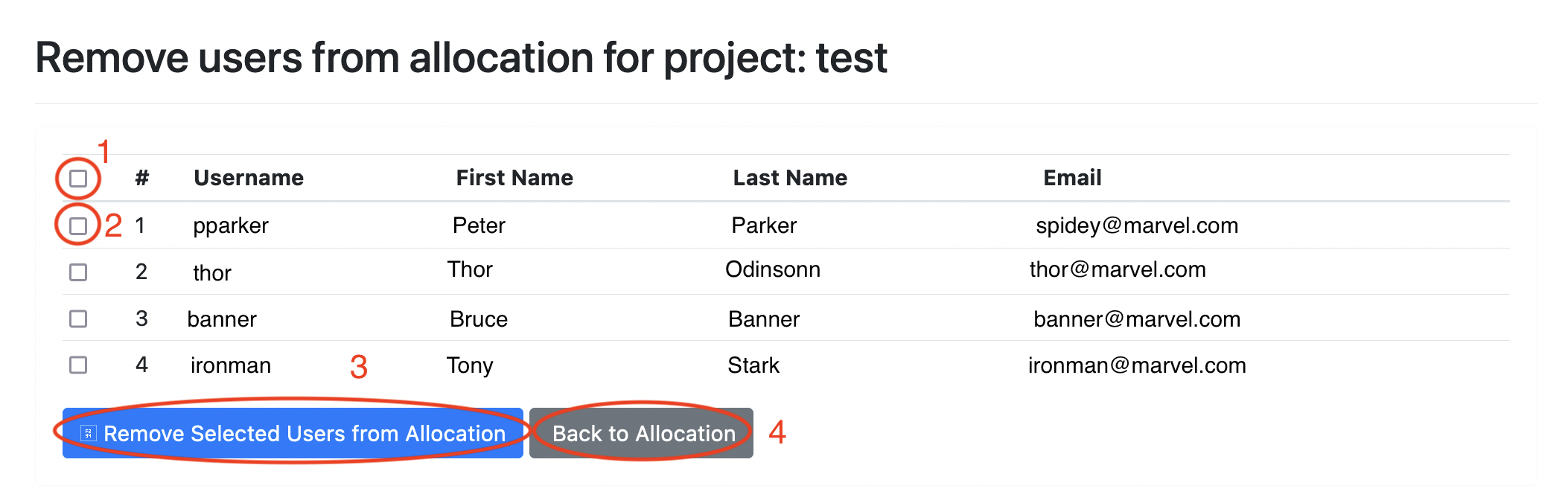
This page will list all users in the allocation, with checkboxes (like
the one labelled 2 in the screenshot) next to the users.
Clicking on the checkbox will select that user for deletion, or you
can click on the checkbox in the header line (labelled 1
in the screenshot) to select all users. Then click the button
Remove Selcected Users from Allocation (labelled 3)
to actually delete these users, or the Back to Allocation button
(labelled 4 to return to the Allocation view page without
deleting the users. If you opt to delete the users, they will be removed
from ColdFront immediately, but it will take a while for the deprovisioning
processes to actual delete the user.
Updating the research output/publications for a project
PIs and managers of a project are able to update the list of research
outputs and publications for the project. When viewing the web page showing
the details of the project, there are
a pair of buttons Add Publication and
Add Research Output buttons (labelled 7 and
8 in the screenshot) which can be used to do this.
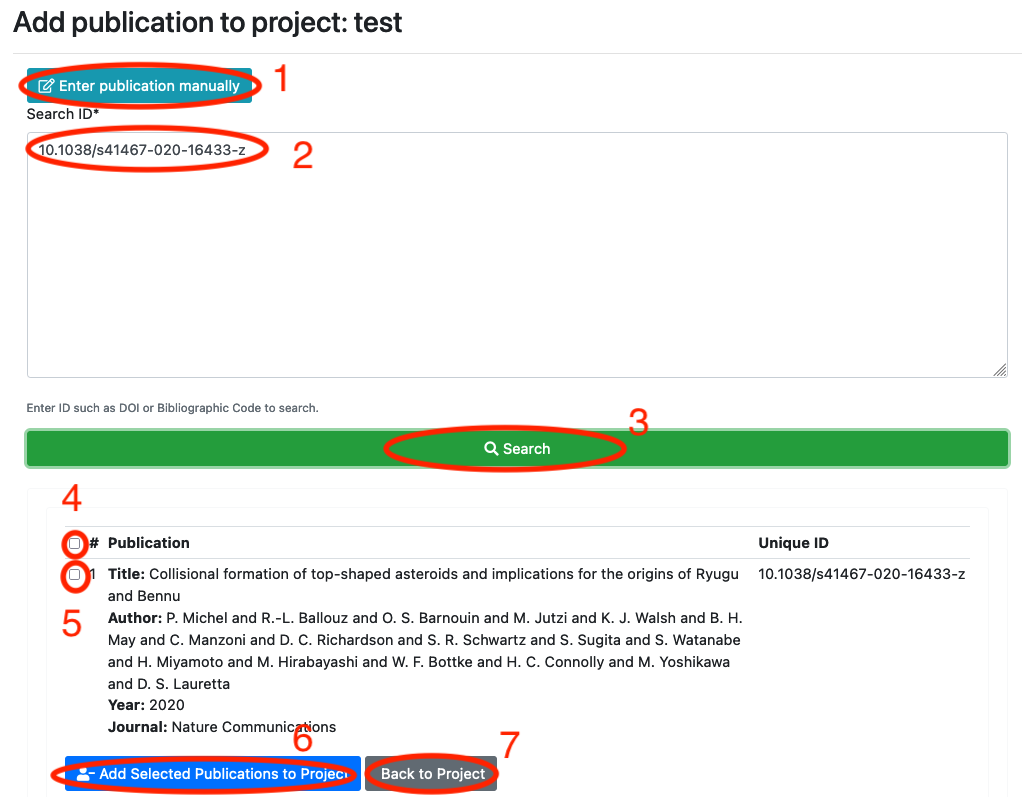
Clicking on the Add Publication button will open a page like
 .
.
Normally, you will want to add publications by entering the DOI number of
the publication into the Search ID box (labelled 2
in the screenshot), and then clicking the Search button (labelled
3). Note: only DOI numbers are currently
supoorted. If an article corresponding to the DOI identifier is found, it
will be reported in the list below, with a check box (labelled 5)
next to each entry. If multiple matches are found, there will be a check
box for each, as well as one in the header line (labelled 4)
which allows you to select all entries listed. Select the desired article(s),
and then click on the button Add Selected Publications to Project
to add these publications, or Back to Project to abort.
Although entering publications by DOI is the easiest way, if no DOI is available
or that does not work, you can click on the button Enter publication
manually (labelled 1 in the screenshot) to enter the
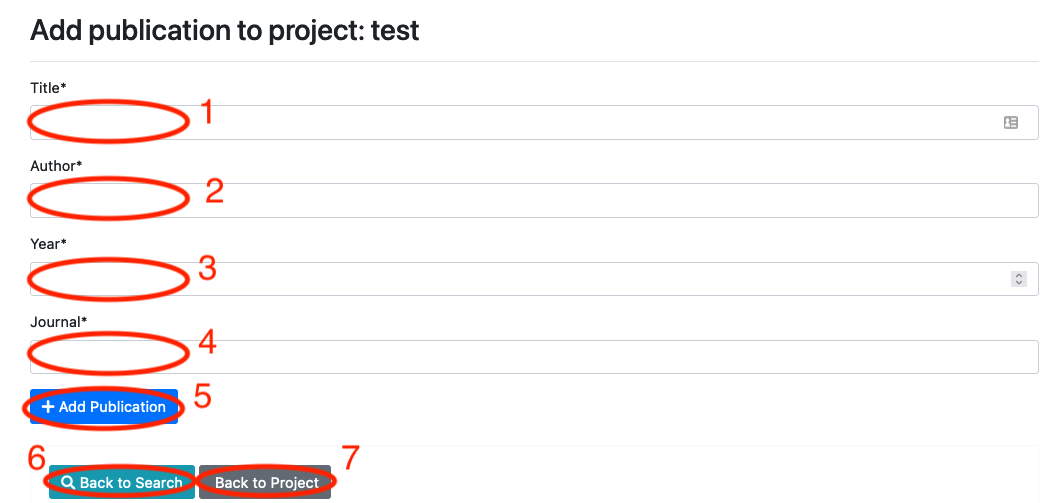
information manually. Clicking that button will open a page like
 .
.
This page offers four fields allowing you to cite the publication. In the first
field (labelled 1 you should enter the title of the pbulication.
The next field (labelled 2) is for the list of authors of the publication,
and in the third field (labelled 3) you should enter the
year of the publication. In the fourth field (labelled 4) you
should enter the journal citation. Once all that is entered, you can click
the Add Publication button (labelled 5) to submit
the publication, or Back to Search (labelled 6) to
return to the search by DOI page, or the Back to Project button
to return to the project detail page.
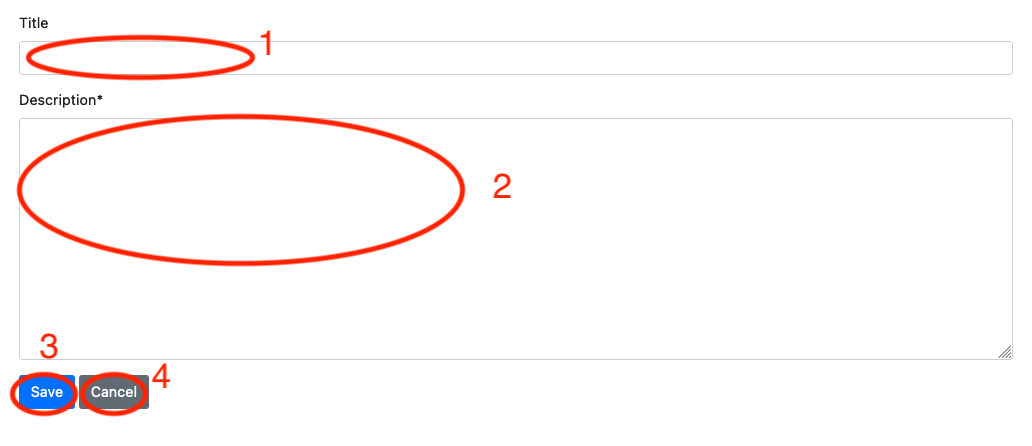
Clicking on the Add Research Output button on the
project detail page will open a page
like:
 .
.
This allows one to add "resaerch outputs" to the Project. Research outputs
are any research accomplishment of your project, to which the use of the HPC
cluster contributed, which you wish to share with the AAC that is not a
publication. These are useful when you wish to demonstrate (e.g. in an
allocation renewal request) that your past use of the cluster has been
productive, beyond the list of publications generated. Because of the time
delay in generating publications, sometimes research output are the only
research products available. To add one, you should give it a short title and
enter such in the Title field (labelled 1 in the
screenshot) and then describe the accomplishment in the Description
field (labelled 2). Once that is done, click on the
Save button (labelled 3) to add the research output,
of click the Cancle button (labelled 4) to abort
without saving.
We ask that PIs and/or managers update the publications and research outputs of their projects at least annually. Having a large list of research outputs and publications from our HPC researchers is useful in convincing the University management that the HPC resources are important to the University's research role and is worth investing in.
Viewing arbitrary projects/allocations
Most users are only able to view projects and allocations to which they belong, and therefore most of the pages do not make seeing other projects and allocations convenient. Generally, if you do not belong to an allocation or project, you have no business trying to view it (and even less business trying to alter it), and you can just ignore this section.
A small number of people are responsible for administrating a pool of resources on the cluster for their department, college, or even university. When making decisions on allocations, it is useful for such people to be view information about the allocations created from resources from the pool they are managing, and the containing projects. This section is for those people.
Unfortunately, at this time there is no mechanism within ColdFront to enable an admistrator for the pool belonging to project X to see a list of all allocations created from that pool. However, there is a mechanism for at least viewing information about a specific allocation created from the pool and it's containing project --- the downside is that it requires you to know the name of the PI for the project.
To do so, navigate to the
page showing the list of all projects
(accessible from the Projects submenu
item in the Project drop-down from the horizontal navigation
bar at the top of the page (labelled 3 in the screenshot
of your home page. This will show a
list of all projects to which you belong. There is a link labelled
Filter (marked by the number 1 if the project
listing screen shot); click on that and a section enabling you to filter
projects will appear, as shown below:

You can press the Filter button (labelled 1 in
the screenshot) if you wish to close the filter menu and return to the
normal view. Otherwise, you can enter values in the form for the
Last Name of the PI of the project (numbered 2),
or the Username (numbered 3) of any user in the
project, or the Field of Science (4). Be sure
to have the Show all projects check box checked (5),
otherwise it will only filter projects to which you belong. When set, click
the Search button (labelled 6) to search for those
projects. You can press the Reset button (7) to
clear the fields in the search form to start a new search.
The matching projects will appear in the list below. Click on the ID
of a project (e.g. the number 12 in the red circle labelled
8 in the screenshot) to view the project details. From the
project detail page, you can view the allocations belonging to the project.
In this example, we searched for projects to which the user einstein
belongs, and two were found. Note that the username search will return
any project the specified user belongs to (i.e., not just projects for
which they are PI). The last name search only works for PIs.