
Transferring files to/from the Cluster
In the course of working on the HPC cluster you will likely need to transfer data, files, codes, etc. to the cluster from other systems, or from the cluster to other systems. You also will likely need to transfer data between the different storage tiers available on the cluster. While transferring small amounts of data is relatively easy, HPC users often need to transfer many GBs or even TBs of data, and transferring data at that scale adds some complications.
For large file transfers, we generally recommend using the
Globus file transfer system when feasible --- it
is usually the most convenient and easiest method.
Otherwise, we recommend using rsync for transfers
to and from Unix systems, and rclone when
transferring to or from cloud providers.
Note
The compute nodes of the cluster are not able to access the public IPv4 internet. This is by design, both for security reasons and because the inherent latencies in using resources off the public internet generally are contrary to the goals of "high performance" computing The login and data transfer nodes are generally able to access the public internet. It is recommended that you transfer the data using the login or data transfer nodes, and then run any computations on the compute nodes against the local copies of the data. The compute nodes will generally have access to the campus network, but not external sites.
Tip
Although unlikely, it is possible for data to get corrupted during a transfer. If your data is valuable, we recommend that you calculate the checksums of the files on the source system and again on the destination system (after the transfer) and compare the two. If they do not match, retransfer the files whose checksums do not match.
To perform a checksum, you can use the sha256sum
command on Unix or Mac systems, or on Windows systems
the certutil --hashfile command.
When transferring large numbers of files, we suggest
using the find command and perhaps the sort command to
collect all of the checksums for all files underneath
a root directory. If you are transferring all of the
files under ROOTDIR, you can use a command like
cd $ROOTDIR; find . -type f -exec sha256sum {} \; | sort -k 2
Using scp or sftp
The "standard" unix-like utilities for transferring data
between systems are the scp and sftp programs, which
implement the Secure Copy (SCP) and
Secure File Transfer Protocol (SFTP),
respectively. These are both typically preinstalled on
Unix-like systems. Windows or Mac users might need to
install a scp/sftp
client.
Both protocols encrypt all data over the wire (hence
the secure in the name).
If you are transferring between two clusters, generally both systems have the required daemons running, and you can initiate the transfer from either side, regardless of the direction of the transfer. If you are transferring files to or from your workstation, you will typically need to initiate the transfer from your workstation, regardless of direction, as your workstation most likely does not have the required daemon processes running.
Assuming you are on your workstation and your have the client installed, just open up the client and point it to the cluster login nodes.
Example
unix-prompt> scp -o User=payerle myfile login.zaratan.umd.edu:
Password:
myfile                               100%  867     0.9KB/s   00:00
unix-prompt>
unix-prompt> sftp -o User=payerle login.zaratan.umd.edu:
Connecting to login.zaratan.umd.edu...
Password:
sftp> put morefiles*
Uploading morefiles1 to /home/payerle/morefiles1
morefiles1                              100%  132     0.1KB/s   00:00
Uploading morefiles2 to /home/payerle/morefiles2
morefiles2                              100%  308     0.3KB/s   00:00
sftp> quit
unix-prompt>
The above example shows how to transfer files using scp
and sftp for the user payerle; you will obviously need
to replace that username with your own. The examples above
copy the files myfile and morefiles1 and morefiles2
from the current directory on the system you invoked the
command from to the Zaratan cluster, keeping the same
name. You can add a filename or path after the colon (:)
in login.zaratan.umd.edu to change the name. To reverse
the direction of the transfer (e.g. from Zaratan to your
local workstation), just swap the order of the filenames
(i.e. put the filename with the login.zaratan.umd.edu:
prefix before the destination path). If desired, you
usually can usually omit the -o User=USERNAME flag and
instead change the prefix from login.zaratan.umd.edu
to USERNAME@login.zaratan.umd.edu.
Tip
When copying files to the HPC cluster, if you do not
specify a path in the destination it will copy the
files to your home directory.
While this is generally not an issue for small files,
the restrictive home directory quota
generally makes this unfeasible for larger files (more
than a few GB or so). It is recommended
that you copy files into your scratch
or SHELL directories; the
scratch and SHELL symbolic links in your home
directory are useful for that.
Tip
While the scp and/or sftp commands are handy for transferring small amounts of data, they are often not the best tools for transferring large amounts of data. Using Globus or rsync is generally better in such cases, as if the transfer is aborted the transfer can be restarted without trying to copy the same data over and over again.
Using rsync
The rsync command is useful for transferring large numbers of files, either for transfers within the same system or transfers between systems. A major advantage of the rsync command as compared to the scp or sftp commands is that the rsync command starts by comparing the files in the source and destination locations, and then starts sending over only the files which are different. This means that if you are trying to transfer a directory tree with ~1000 files totalling about ~ 1 TB and the transfer aborts for some reason about halfway through, you can simply reissue the same rsync command to restart the transfer, and the second transfer will resume more or less from where the first transfer aborted (the file that was being copied when the first transfer aborted will be transferred again, but it will not start transferring all of the files that were successfully copied in the first transfer). If you did this with scp or sftp and the transfer aborted about halfway through, if you restarted the transfer with the same command it would begin by again transferring all of the files that were successfully transferred in the first attempt.
By default, rsync just compares the sizes and modification
timestamps of files, and will copy the file if either does
not match. If both match, rsync assumes the destination file
is already the same as the source file and will not recopy
it. If you give rsync the --checksum`` command, rsync will
actually perform a checksum on the source and destination
versions of the file (assuming both exist), and only copy
the file if the checksums do not match. If--ignore-times`
is given, rsync will not do the size/modification time checks
and simply copy all files.
Regardless of what method is used for determining whether to
copy the file, rsync does a checksum on all transferred files
to ensure that the transfer was successful. (If the
--checksum flag was given, this could result in two checksums
being computed on the destination system; once before and
once after the transfer).
The basic use of the rsync command in
rsync -r SRCPATH DESTPATH
The -r flag causes a recursive copy. SRCPATH and DESTPATH
are the source and destination paths. When copying files on
the same system, SRCPATH and DESTPATH are simple paths like
one would use with the copy command. To copy across systems,
the syntax is essentially the same, but one of SRCPATH or
DESTPATH should be of the form HOST:PATH or USER@HOST:PATH
which to use the file/directory designated by PATH on
the system host (using the username given by USER if given,
or the username on the system from which the command is run
if no USER is given). When copying across systems, the
command will prompt for a password (unless you have
enabled passwordless login
and MFA(unless you are on the
campus VPN).
Using Globus
For large amounts of data, we generally recommend using Globus if both the source and destination systems have Globus endpoints. Globus is a cloud-based software-as-a-service providing file transfer, sharing and data publication functionality. It is supported by most [HPC centers(/kb/glossary.md#hpc) and is designed for efficiently moving very large (many TBs) of data. Globus has automatic support for using multiple streams (thereby speeding up transfers) as well as restarting failed transfers withouth manual intervention.
Globus allows for transferring files and data between any pair of "endpoints". As stated earlier, most HPC clusters have Globus "endpoints", allowing you to transfer data efficiently between HPC centers. UMD also has endpoints allowing you to access various cloud storage providers (Google Drive, Box, etc). Also, you can install the Globus Connect Personal to temporarily make your desktop/workstation into an "endpoint" so that you can transfer files to and from it as well.
Usage
To use globus,a you should:
- Open a web browser on your workstation and go to the
main Globus page and click on the
"Log in" icon in the upper right.
2 You will be requested to log in.
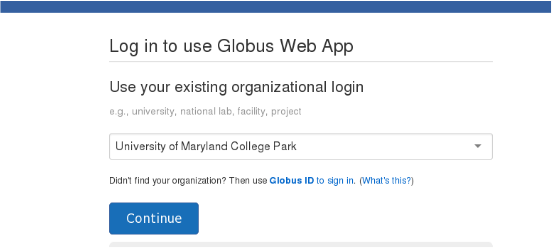 There will be a dropdown listing various organizations. There
are multiple ways UMD users can log into Globus:
There will be a dropdown listing various organizations. There
are multiple ways UMD users can log into Globus:- Select
University of Maryland College Parkfrom the dropdown, and you will be redirected to the campus login page, where you can use your UMD directory ID and password to log in.
Most users will likely want to use this option --- it should work for faculty, staff, and graduate research assistants. - Select
Googlefrom the dropdown list, and enter your@umd.eduor@terpmail.umd.eduemail address and your corresponding password. Since those email addresses use GMail as the underlying service provider, this should work, even for students without research assistanceships. - Select
Googlefrom the dropdown list, and login using your personal GMail email address and password. While this should work, we strongly recommend using one of the above two mechanisms if possible, as you should generally not use your personal email address for work related activities. - If you are a student who needs/wishes to log in directly using
your UMD directory ID and password, but cannot do so because
you are currently not in a research assistanceship position, you
can ask your faculty advisor request that the campus data stewards
release your specific account for direct authentication to Globus.
Please see:- The Single SignOn and Enterrise Directory Integration Service Catalog entry.
- Knowledge base article for requesting integraton
- Select
- After logging in, you will reach the file transfer page. On
this page you will get two file browser windows, one on the left
and one on the right. Each window has an "Endpoint" field and
represents one "endpoint" or one of the systems between which
you wish to transfer files. (Once the two endpoints are set up,
you can transfer files in either direction.) You should select
an endpoint by starting to type its name in one of the "Endpoint"
fields, and you will get a list of matching endpoints. Endpoints
of interest are:
University of Maryland Zaratan DTNendpoint: This is the main Globus endpoint for the Zaratan cluster, and the recommended endpoint to use unless you are transferring data to or from the SHELL storage tier, as the standard endpoint does not support the AFS tokens needed for SHELL access.University of Maryland Zaratan SHELL DTNendpoint: This is another Globus endpoint for the Zaratan cluster. Unlike the main endpoint, this endpoint supports access to the SHELL. While this endpoint generally works, this endpoint is still considered experimental since the complexity of adapting Globus support the use of AFS tokens makes it somewhat fragile. If you encounter issues, let us know, but be aware it might take some time for it to be fixed.UMD Google Drive Collection HA: This endpoint allows you to access to data on Google Drive.- If you are running Globus Connect Personal on your workstation, that endpoint can also be selected.
University of Maryland Juggernaut DTN: This endpoint is defunct.
- Many if not most endpoints will require you to authenticate
yourself to that endpoint.
 Login, and you should see a list of
files and directories on that system.
Login, and you should see a list of
files and directories on that system. - Once you have selected and logged into both endpoints, you can start a file transfer. The file browser screens will display the filesystems on the two endpoints. To transfer files, just select files on one system and then select the appropriate arrow to initiate the transfer.
Globus Connect Personal
Globus Connect Personal allows you to set up your workstation as a Globus endpoint which you can later use to transfer files to and from. If you are only interested in using Globus to transfer files between existing endpoints (e.g. HPC clusters), you will not need to use this.
To setup your workstation as an endpoint, you will need to install Globus Connect Personal on it. This needs only be done once. To do this, open a web browser on your workstation and:
- Open the browser on your workstation and Visit https://www.globus.org/globus-connect-personal
- Under the "Install Globus Connect Personal" there should be links with instructions for installing Globus Connect Personal for different operating systems. Select the appropriate one, and then follow the instructions to install Globus Connect Personal,
- During the installation process, the installation script will prompt for where Globus should be installed. The default location usually requires administrative access to the workstation; if you do not have such you can install to a location where you have write access (e.g. beneath your home directory).
Once you have installed Globus Connect Personal on your workstation, you can run it to make your workstatino a Globus endpoint.
- Start the application from the Start menu or similar.
- The application will start by prompting you to login. You should login like with the in the regular Globus case.
- You will need to configure Globus Connect Personal before
using. This is covered in detail in the aforementioned installation
instructions as well. In particular:
- You will be prompted to name your Endpoint or collection.
- Under the "Access" tab you can add folders which you want
to give Globus access to. The "Writable" checkbox means
that Globus will be able to transfer files into the folder.
The "Shareable" checkbox means that Globus can transfer files out of the folder. It is strongly recommended that you leave the "Shareable" checkbox unchecked for security reasons. (Note that the "Shareable" box requires you to be a Globus Plus user, and that at this time the University does not provide such). - Under the "General" tab, there are also checkboxes related to "Run when Windows starts" and "Automatically check for updates". It is recommended to leave the first ("Run when Windows starts") unchecked, and the latter ("Automatically check for updates") checked.
Using rclone
The use of Cloud Storage providers for storing data is becoming increasingly popular. The University provides free access to
These Cloud Storage providers can be particularly useful for storing archival data. Please see the service catalog entries above for more information on the services, and in particular for a discussion of what data is permissible to store there.
Each Cloud storage provider backend has slightly different procedures for uploading and downloading data. However, the rclone utility is a nice utility that can access many different Cloud service providers (including both Google Drive and Box) with a common command line interface.
For more information about using rclone