
The Open OnDemand Portal
This page provides some instructions on the use of the Open OnDemand Portal (OOD) for interacting with the various UMD HPC clusters. This is a good place to start reading for new users to the cluster, especially those who are not very familiar with using the Linux/Unix command line, as the OnDemand Portal has features that can increase the usability of the cluster in such cases. However, even advanced users might find various features, in particular Interactive Applciations Batch Jobs and Shell Access useful, especially when on the road.
Warning
If you ever use the OnDemand portal from a public/shared system, ALWAYS BE SURE to COMPLETELY EXIT THE BROWSER when you are finished. Otherwise your login credentials could be stored in session cookies and the next person to use the machine might be able to access your accounts on the HPC clusters. Also make sure you completely disconnect from the campus VPN when you are finished.
Connecting to the OnDemand Portal
Connecting to the OnDemand Portal is easy. Just open a web browser on your desktop/workstation/etc, and go to the URL for the HPC cluster you are using:
| HPC Cluster | URL for OnDemand Portal |
|---|---|
| Zaratan | https://portal.zaratan.umd.edu |
Note
You must be on the campus VPN in order to connect to the OnDemand portal.
Warning
You must completely exit your web browser in order to
fully log out from the OnDemand portal. If you ever use
OnDemand from a public/shared system, always be sure
to COMPLETELY EXIT THE BROWSER when you are finished.
Otherwise your login credentials could be stored in session
cookies and the next person to use the machine might be
able to access your accounts on the HPC clusters.
Also make sure you completely disconnect from the
campus VPN when you are finished.
You will be prompted for your username and password, use the same credentials you use to access the login node for the cluster. Once logged in, you will see the Dashboard home page, the main feature of which is the red navigation menu bar across the top, as shown below:

The navigation menu bar is what you will use to access much of the portal functionality. A similar navigation bar occurs on most of the other pages, although a different color and fewer and different menu options. Note the following features of the dashboard navigation bar, going from left to right:
- All the way at the left (marked
A) is a label with the name of the cluster the OnDemand portal is for. Although not particularly needed on the dashboard screen (since the cluster is clearly indicated in the large logo beneath the navigation bar), this occurs on most of the child screens for portal, where it might be more useful, and you can click on it to get back to the dashboard. - Next is the
Filesdropdown menu (labeledBin the screenshot). The dropdown will give a list of directories, including your home and lustre directories, and selecting one of the will open the OnDemand File Manager in that directory. - The next menu item is the
Jobsmenu (indicated by theC), which provides access to utilities for dealing with batch jobs. In particular, there is a link to monitoring your batch jobs and a link to the - The Job Composer utility. - The
Clustersdropdown menu (labeledD) comes next.
Currently we have separate portals for each cluster, so this will only have a single item, which provides shell access to one of the login nodes for the specified cluster. You will need to use the Linux/Unix command line to make use of that, but it is handy if you need to access the cluster from a machine without an ssh client installed. - The next two menu items deal with interactive applications
and sessions. The
Interactive
Apps
drop down menu (markedE) returns a list of interactive applications supported by the portal. These will launch interactive jobs running the specified application and supporting a graphical interface through the web client. The jobs go through the scheduler and run on compute nodes, so there might be significant waits before resources are available if the cluster is busy.
But it does allow graphical displays without needing to install X on your workstation. TheMy Interactive Sessionsentry (indicated by theF) will allow you to review, connect to disconnected sessions, and/or terminate interactive sessions. - Some users may see a
Developmenu (Gin the screenshot).
This is for more advanced users who are working with DIT to develop job templates, etc. to assist less advanced users in their field. This is discussed more in the section on Developer documentation Contact systems staff if you are interested in developing job templates. - The
Helpdrop down menu (markedH) contains links to URLs to submit help tickets, access the HPC documentation, change your password, etc. - The final bits of the navigation menu (marked
Iin the screenshot) list the username with which you are logged into the system. That could be helpful for people with a normal account and say a temporary class account. There is also aLog Outbutton; do NOT use this. In order to provide it's functionality, OnDemand uses cookies, cached passwords, etc., and you need to fully exit your web browser to really log out. TheLog Outbutton will not really log you out.
Note
To fully log out, you should exit the web browser, as otherwise some credentials might still be cached, enabling the browser to login automatically (without your entering a password) if the site is revisited within a day or so. Always fully exit the web browser to logout of the portal, especially on shared machines. You might also want to consider using a private browsing session if your web browser supports it.
Warning
If you ever use the OnDemand portal from a public/shared
system, always be sure to completely exit the browser when
you are finished (and completely disconnect from the
campus VPN when you are finished).
Otherwise your login credentials could be stored in
session cookies and the next person to use
the machine might be able to access your accounts
on the HPC clusters.
Using the OnDemand File Manager
The first bit of functionality we will discuss is the OOD
File Manager app, which is accessed via the leftmost Files
drop down menu on the navigation menu bar at the top of the
Dashboard. When clicked, you get a choice of where you
want the File Manager to start:
- "Home Directory": for your home directory on the cluster
- "/scratch/zt1/project": this is for the root of the project directory in scratch. You will see a list of all projects on the cluster (it may take a few seconds to appear); you can descend into the directory for any projects to which you belong.
- "/afs/shell.umd.edu/project": this is for the root of the project directory in the SHELL storage tier. You will see a list of all projects on the cluster (it may take a few seconds to appear); you can descend into the directory for any projects to which you belong.
Click on the directory you wish to explore, and click on it, and the explorer window will open, based in the selected directory.
Overview of File Manager screen
The File Manager page has a lot going on in it, and here we provide a brief overview to the various components it presents.
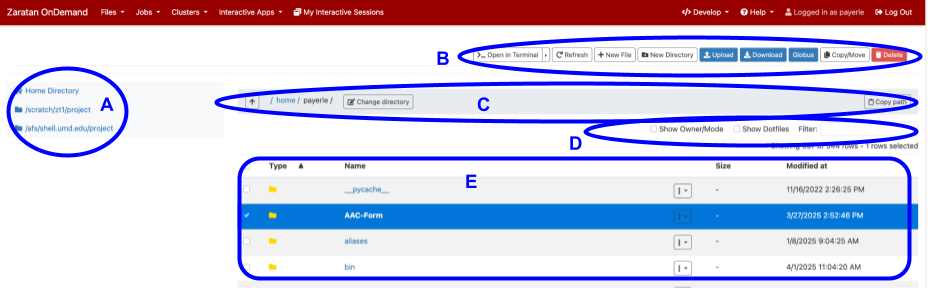
- The leftmost section, labeled A in the diagram, shows various
locations, the same selection as from the "Files" drop-down in
the main menu bar, namely:
- Home Directory: your home directory
- /scratch/zt1/project: The root of all the project scratch directories
- /afs/shell.umd.edu/project: The root of all the project SHELL directories.
- The topmost section, labeled B in the diagram, is the main menu bar
for the Manager. This menu bar contains buttons, etc. for various
overall settings, file/directory creation, etc.
- Open in Terminal: This button will open a terminal session on a login node with the currently displayed directory as the working directory.
- Refresh: This will refresh the directory view
- New File: This will create a new, empty file with a specified name in the currently displayed directory
- New Directory: This will create a new empty directory in the currently displayed directory
- Upload: This will allow you to upload files from your workstation to the cluster. You can either drag files into the box, or click on the link to open a file browser window.
- Download: If you have one or more files or directories selected, clicking on this button will download those files to your workstation. selected, a zip file will be generated and downloaded.
- Globus: This will launch a Globus connection with one endpoint set to the directory being displayed.
- Copy/Move: This will allow you to copy or move a file.
- Delete: This will delete files or directories.
- Section C, underneath the main menu bar, displays the path to the currently displayed directory on the left. You can copy that path to your buffer with the Copy path button, or change the directory using the Change directory button or the up arrow (all the way on the left) to move to the parent directory.
- Section D controls what information is displayed, or can be used to filter by file/directory name.
- The largest section is the file list frame, labeled E in the diagram. This is the standard file manager window listing files and directories in the directory currently being viewed. There are checkboxes to the left of the file names which can be used to select files (selected files will be highlighted as well).
Navigating directories
This section gives a brief tutorial on how to navigate to the desired directory in the OOD File Manager. In general, there are several ways to accomplish this.
Probably the easiest way to navigate to directories under the base
directory with which the File Manager was launched is to double click on
the directory name in the file list frame (E).
This will cause the current directory to descend to the selected
directory. To move up the directory tree, you can double click on
the up arrow icon to the left of the current directory path in
the menu bar C in the screenshot.
Alternativelyy, you can also click on the Change Directory button in menu bar C, which will prompt you to enter a path for the directory you wish to change to.
Whichever choice you use, when you change directories the path listed in the current directory field (C) will be updated to reflect the new path, and the contents of the file list frame (E) will show the new directory.
Manipulating files
This section gives a quick overview of how to use File Manager to manipulate files. In general, the first step is to navigate to the directory containing the file you wish to manipulate in the main file list frame (E) of the screenshot, and select the file you wish to manipulate (by clicking on the checkbox to the left of the filename). For creating a new file/directory, or uploading a file, just navigate to and open the directory in which the new file/directory should go.
To see the contents of a file, just select the file and click on the file name in the file list frame (E in the screenshot). You can also do this by clicking on the drop down to the right of the filename, and select View.
Note
The viewer in the File Manager is limited in terms of what type of files it can view. Text files are OK, and it handles most common graphical image files (html, pdf, png, jpg, etc). Using it on other binary files (including ps, zip, tar, various Office formats, etc) is likely to produce unsatisfactory results. The exact list of what formats work and which do not is likely dependent on your browser and its addons/settings.
To create a new empty file or directory, navigate to and open the desired
parent directory, and then click on New File or New Dir in the
main menu bar (B) for a new file or directory, respectively. This
will open a dialog allowing you to enter the name for the new file
or directory.
To upload a file from your workstation to the cluster, navigate to and
open the desired parent directory, then click the Upload button
in the main menu bar (B). This will open a dialog box with a
Browse button; You can either drag files into the box, or
click on the browse button and a file dialog will open. Select the
file on your workstation which you wish to upload, and it will
be uploaded to the currently open directory.
To download a file from the cluster to your workstation, navigate to the directory containing the file and select one or more files and directories. Then click on the Download button and they will be downloaded to your workstation. If you select a file, it will be downloaded to your Downloads directory with the same name; if one or more directories are selected, a zip file will be downloaded. You can also use the Download item from the dropdown to the right of the filename in the file list frame (E).
To upload or download files from a system other than your workstation, you can use the Globus button, assuming the other system has a Globus endpoint. This will open the Globus web application with one endpoint set to the currently viewed directory.
To edit the file, click on the dropdown to the right of the filename
in the file list frame (E of the screenshot
and select Edit. This will open a simple
WYSIWYG editor
inside OOD. Make your edits, and when you are done, click on the blue
Save button in the upper left. To abandon your edits, simply
abandon the page without saving (i.e. close the browser window).
To rename the file, click on the dropdown to the right of the filename in the file list frame (E) and select Rename.
To delete a file or directory, navigate to the parent directory and select the file/directory you wish to delete. Then click on the red Delete button on the right of the file manipulation menu bar (D). This will open a dialog confirming that you wish to delete the object. You can also do this with the Delete item in the dropdown menu to the right of the filename in the main file list frame (E).
Warning
NOTE: Once you delete something, it is GONE, forever; it cannot be recovered.
Warning
NOTE: The Delete button will allow you to delete a directory with files and/or subdirectories without any additional warnings (other than the aforementioned basic confirmation). USE THE DELETE BUTTON WITH CARE.
To copy one or move files to a new directory, it is you can use
the copy and paste method. Navigate to the containing directory
and select the file(s) or directories by clicking on the check
box to the left of the filename in the file list frame (E),
and then click on the Copy button in the main
menu bar (B of the screenshot. A new
pop up will display in the upper left (basically on top of A
in the screenshot) listing the files/directories and with Copy
and Move buttons. Navigate to the directory you want to copy/move
the files to, and then click the Copy or Move button as
appropriate.
To make a copy of a file in the same directory with a different name is not well supported. I think the best option is to copy and paste the file to a different directory (creating a temp subdirectory if needed), then rename the file in that directory and then move back to the original directory.
Miscellaneous items
Normally, the main file list frame (E of the screenshot) only shows file/directory name, size, and modification date. If you click the check box Show Owner/Mode in the menu bar D, it will also show the file/directory owner and the mode/permission bits (the latter will be in the standard Unix format).
Also, by default, files and directories whose name start with a '.' (period) character are omitted in the list --- this is in accord with the standard Unix custom to treat files with such names as hidden files/directories. You can check the Show Dotfiles checkbox in bar D.
You can use the Open in Terminal button in the main menu bar (B) will open a terminal session in another window/tab of your browser. This terminal session will automatically have the working directory set to the directory displayed in the file manager. This can be an alternative to installing an ssh client on a system.
Interactive Apps
One of the more interesting features of the OnDemand portal is that availability of "interactive applications". These allow you to launch an interactive session on one of the cluster compute nodes. What is especially nice is that these most of these applications support graphics without the overhead of installing an X server on your workstation --- you get a full graphical interactive session over your web browser.
You can access the various interactive apps from the Interactive
Apps drop down on the main, top menu bar from the OnDemand dashboard.
They are also listed in the navigation frame on the left from the
interactive app menu page, allowing you to quickly jump around between
applications.
When an interactive app is launched, it waits in the queue for an
available node just like any other job.
Depending on how busy the cluster is, the wait time can be
a couple of minutes to several hours. You can often reduce
the wait time by using the debug partition, but in those
cases your interactive job is limited to 15 minutes. Even
in the non-debug partitions, various choices you make (such
as number of cores/nodes,
walltime, if you need GPUs or not) can affect
your wait times.
Warning
The VNC connection used for displaying the GUI is rather dependent on the browser being used. In particular, we have seen issues when connecting with Chrome browsers on Windows workstations. We recommend Firefox for Windows users.
The Division of IT is working to add more applications to the list of those supported in this section of the portal, so it might be worth checking back here periodically. Although even if the application is not listed, you can generally make use of it via the Interactive Desktop Session app. Currently, the following interactive applications are supported:
- Interactive Desktop Session
- Interactive Desktop with Advanced Options
- Interactive Matlab Session
- Interactive Jupyter Session
When you click on an interactive app in the drop-down list, you end up
on the main setup page for that application. This starts with a line or
two describing the application, and then has a form with a number of fields
to fill out. At the bottom of the form is a blue Launch button;
clicking this button will cause the interactive job to be submitted.
Although the form fields are application specific, a number of the fields crop up frequently and will be discussed here.
- Account: This specifies which allocation account you wish the job to charge against. This field is only of concern if you belong to multiple projects, or if you belong to a project with both standard and high priority allocation accounts, and even then only if you wish to use an allocation account other than your default. If you only belong to a single allocation account or wish to use your default allocation account, just leave this blank. Otherwise, enter the name of the allocation account to have the interactive job charge against. For information on choosing which allocation account to use.
- Partition and Node Type: This is for selecting which
partition
and/or type of node you wish to submit your job to. These are
combined into one field because the two choices are generally
intertwined. These are described in detail in the setup form, but
common options are:
- debug: use the debug partition. (15 minute walltime limit).
- standard: use the standard partition and standard compute nodes
- bigmem: use the large memory compute nodes
- h100: Use the gpu partition requesting H100 GPUs
- a100: Use the gpu partition requesting (full) A100 GPUs
- a100_1g.5gb: Use the gpu partition requesting the fractional a100_1g.5gb GPUs
- Maximum wall runtime for job: This specifies how long the
interactive job should run. Your job will be
killed when this limit is reached, so you should ensure you
specify enough to complete your work. Although you will be charged
for the actual time used, you should not request excessive amounts
of time as that will likely cause increased waiting times in
the queue. For more information regarding
specifying walltimes. NOTE: When
using the
debugpartition, make sure you request no more than 15 minutes. The allowed formats for this field are:- An integer number of minutes
- hours:minutes
- hours:minutes:seconds
- days-hours:minutes
- days-hours:minutes:seconds
- Number of cores: This specifies how many cores you wish the scheduler to allocate to your job. Note that it is up to the program you are running to take advantage of the cores you request --- you will be charged for all cores allocated to you whether you use them or not.
- Memory required for job (per CPU core): This specifies how
much memory the scheduler should reserve for
this job. You can enter a value as a number (which will be
interpretted as that many MiB), or a number
followed by
MorGfor a value in MiB or GiB. The number entered is per CPU core, whatever value you entered will be multiplied by the number of cores requested to generate the total amount of memory allotted to the job. If you leave this blank, it will default to 4 Gib/core. - Number of GPUs: This specifies how many GPUs you wish
the scheduler to allocate to your job. This must be 0 unless you
specified a
Partition and Node Typewhich includes GPUs, in which case it must be greater than 0. The type of GPUs to be used is determined by the node type. - I would like to receive an email when the session starts checkbox: If this box is checked, the scheduler will send you an email when your interactive job starts up on the node. As stated, depending on the load on the cluster, it might take a couple of hours for your job to start, this will send you email when it starts.
At the bottom is a blue Launch button, when all the form elements
are set to the proper values you can click on that button to submit
the interactive job. At this point you will be redirectored to an
interactive session page, which will list all of the interactive
jobs you have submitted, along with some
show information about each as job, as seen below:
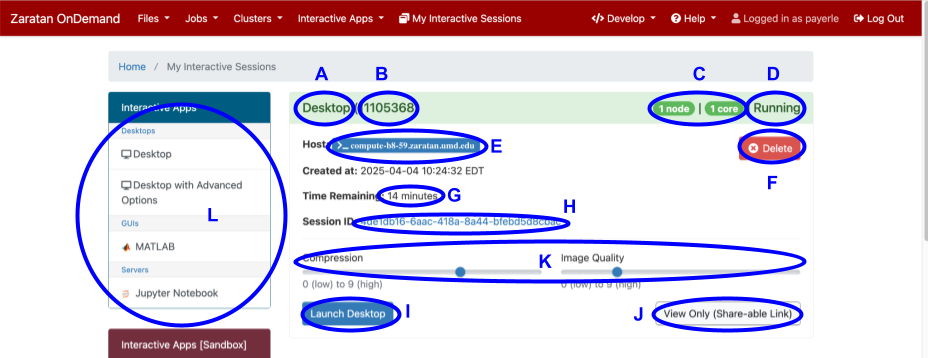
There is a menu of interactive applications on the left (L in the screenshot) from which you can launch new interactive application instances.
Most of the rest of the page is a list of the various interactive jobs that you have submitted. Each such job will appear as a separate "card", starting with a title bar consisting of the name of interactive applications (A), the Slurm job number (B), information about the number of CPU cores and nodes allocated to the job, and the status of the job (D). The background color of this title bar will change with the status (D); in the above example the job is running, so the background is light green. queued jobs will have a light blue background, and completed jobs will be light gray.
Note
Completed jobs are only visible for about six days after they have completed.
Underneath this are various fields describing the job. Not all of the fields are present in all job statuses; we discuss a running job below as that has the most fields.
While the job is running, there will be a field (labeled E in the diagram) showing on which compute node the job is running, this field is absent until the job starts. If you click on the host name, a new browser window/tab will open a command line terminal session on that compute node. The session ID, the long string of letters and numbers ( labeled H in our screenshot), is how the portal identifies your job. That string represents a directory under the ondemand subfolder in your home directory where the portal saves various information related to your job. You can click on the link to open the directory in the File Manager (and see the full path, if desired). By default, the output and any error files will go here, as well as copies of the actual batch script used, etc.
If you change your mind about the job, you can use the red
Delete button (F on the right just below the header bar
to cancel/delete the job. If clicked on, a dialog will open asking
you to confirm the action. If you click this on a running or
queued job, the job will be cancelled (e.g. scancel) in
Slurm. If the job is completed, the "card"
or information about the job will be removed from this screen.
Note
Deletion of a job in the interactive job screen (or the
automatic dropping from the screen of completed jobs after
six days), does not delete the data stored in the subfolder
of your home directory.
You should periodically clean up your
~/ondemand/data/sys/dashboard/batch_connect/sys/*/output
folder of old interactive job outputs.
For running jobs, there will be a blue button at the lower left
(indicated by the I in the screenshot),
is probably the piece you are most interested in. It typically
will be labeled with the a word like "Launch" or "Connect", e.g.
Launch Desltop, Launch MATLAB, or Connect to Jupyter. If
you click this button, your browser will open a new tab containing
an interactive graphical session on the node your job is running.
E.g., for the interactive Desktop application, you get an Unix
desktop; for the Matlab application, you get the GUI for
the Matlab program; for Jupyter you get an interface to Jupyter.
You can interact with the program basically just as you
would if you were sitting at a workstation.
Warning
There are some known issues with opening interactive graphical
sessions for some combinations of OS and web browser.
In particular, we have seen issues with the Chrome browser
on Windows systems; we recommend using Firefox with Windows
when you wish to use interactive applications.
While all of the applications discussed in this section are referred
to as "Interactive applications", and indeed are interactive in that
they enable you to interact directly with the application, many also
support a "detached" mode. I.e., it is possible to launch an
interactive Matlab session, do some work, then start a calculation
that will take a couple of hours, and disconnect from the session
(and even possibly log out and/or shutdown your workstation/laptop).
Assuming you allocated enough time to the interactive session, you
could then reconnect later to check up on the progress of the calculation.
Note
When you are finished with an interactive session, you should
use the Delete button in the My Interactive Sessions tab to
terminate the interactive session. You can also use that tab to
ensure that the interactive application is truly terminated
and not just disconnected (when terminated, it will not appear
as an active session in that page).
Note
Your allocation will be charged for the entire duration of the interactive session, whether you are connected to the session or not.
While disconnecting from interactive sessions, like described above, is permissible, please be mindful of the fact that the HPC resources are valuable, and it is wasteful and inconsiderate to colleagues to leave an active session sitting idly. So, returning to our Matlab example, if you start a calculation in an interactive session that you expect will take about two hours to complete, it is reasonable to disconnect and reconnect an hour or two later. But if you disconnect and only reconnect four hours later, the Matlab process would likely have been sitting idle for about two hours, despite the resources it is running on being reserved for your use --- that would be wasteful and inconsiderate. Generally, it is best to use the Interactive Applications feature when you really will be interacting with the application, and submit batch jobs for longer calculations which do not require user interaction.
Most (but not all) of the interactive applications make use of the
noVNC javascript implementation of
the VNC
protocol for handling the remote display. In these cases, there will
be a noVNC menu bar on the left edge of the screen. It is normally
minimized, looking only like a small tab with an arrow pointing
to the right. Click on that to open the menu (you can click on the
arrow again to minimize it). In particular, the bottom most icon
(sort of a rectangle split at a 45 degree angle with a line
through it) is the button for disconnecting the session.
Clicking on that will disconnect you from the session, but still leave
the job running. You can use the My Interactive Sessions on the
main OnDemand top menu bar to reconnect to the session later.
Note: Disconnecting from the session does NOT
end the job --- use the Delete button (F) to
terminate the job. Your allocation account will be charged until
the job is terminated.
The View Only (Share-able Link) button (labeled J) behaves
somewhat similarly, but only allows one to view the program. You
are unable to use the mouse or keyboard to control the program or
enter data. The intent is that you can email the URL for this link
to a colleague, and then they can watch as you interact with the
program, presumably so one of you can assist the other with the
use of the program.
The Compression and Image Quality slide bars (labelled K in the screenshot) allows you to control the image quality and compression. Normally you should be able to just use the defaults, but there might be certain cases in which you will need to adjust these.
If you disconnect from an interactive job but leave it running, you
can use the My Interactive Sessions item on the main top menubar
for the OnDemand dashboard to see what active interactive sessions
you have. This will list the sessions and provide a blue button to
reconnect to the session. You can also use this to confirm that
all interactive sessions have been completely terminated and not
just disconnect --- Note: disconnected but not terminated
interactive sessions are still charging your allocation account.
Use the Delete button (labeled F in the previous figure)
in the My Interactive Sessions screen to terminate the job when
you are finished.
Interactive Desktop Session
This application will open an interactive GUI desktop on one of
the compute nodes. When you select the blue button (I in
diagram above, labeled something like Launch noVNS in New Tab
or Launch Deepthought2 or Launch Juggernaut) you will get a
fairly standard Unix graphical desktop. You can open applications
from the Applications menu (typically in upper left unless you
moved it), etc. just as if you were sitting at a workstation.
Interactive Desktop with Advanced Options
This application is essentially the same as the Interactive Desktop Session; the only difference is that the application launch form includes a number of more advanced options.
Tip
We recommend users use the standard Interactive Desktop
Session unless you specifically need
one of the advanced options and understand what you are
doing.
Use of the advanced options incorrectly can adversely
affect your job.
In particular, the following additional options are supported:
- Partition and Node Type: The advanced desktop includes some more advanced options here, including various options for using the scavenger partition.
- Number of MPI tasks: The advanced desktop allows you to request multiple MPI tasks (as opposed to thestandard desktop which always silently requests a single MPI task). The scheduler is free to allocate the resources for different tasks on different nodes. It is up to your job to avail itself of the resources from different tasks.
- Number of cores per task: This setting allows one to specify how many CPU cores per MPI task should be requested. The cores and other resources for a given task will be allocated on the same node; cores and resources for different MPI tasks may be allocated on different nodes.
- Number of GPUs per task: This sets the number of GPUs to request per MPI task. This must be 0 unless you specified a Partition and Node Type which includes a GPU, in which case it must be greater than 0.
- Features/constraint to specify for thie job: This allows you to specify features or constraints for your job. This shold normally be left blank. If specified, only compute nodes which support those features will be eligible to be allotted to your job; invalid specifications here can cause your job to never run.
- I want my job to have exclusive access to my nodes: If this checkbox is checked, the scheduler will not allow any other jobs to be allocated resources on any node on which your job is running as long as your job is running. Running a job in exclusive mode is not generally recommended; if you do so your allocation will be charged for all of the resources on the node.
- Reservation: This field allows one to specify a reservation to be used with this job. Unless you were instructed to use a reservation, you should leave this blank --- entering a reservation which is not active or to which you do not have access will cause you job submission to fail or to sit pending in the queue forever.
Interactive Matlab Session
This application will start the requested version of Matlab on
one of the compute nodes. When you select the Launch noVNS in
New Tab button (I in diagram above), you will get a fairly
standard Unix desktop running the Matlab GUI. You can enter
matlab commands, plot data, etc.
The menu for configuring the job will have a MATLAB version
field allowing you to specify the version of Matlab you wish to run.
Interactive Jupyter Session
This interactive application will allow you to start a jupyter
notebook server on one of the compute nodes. Once the job starts,
there should be a blue Connect to Jupyter button. If you click
on that, you will get a interactive Jupyter session in a new tab.
This tab will show on the Files panel your home directory
from where you can navigate to existing notebooks (file extension:
.ipynb) or you can choose from the New pulldown menue
(top right) whether to create a notebook for Python3 or R code.
The Logout button in the upper right
of the Jupyter session deserve some special attention.
If you click the Logout button, it will disconnect your
session with the Jupyter server, but the Jupyter server will
continue to run. You can reconnect with the session later from the
My Interactive Sessions menu in the main top menu bar of the
OnDemand dashboard. Note: Your allocation account
will be charged as long as the job is running. So make sure you
use the Delete Quit if you wish to finish the job. You can
verify if you still have any interactive sessions running from
the My Interactive Sessions option on the main top menu bar
in the OnDemand dashboard.
Batch Jobs
The support for Interactive Applications in OnDemand is nice, but most production work on HPC clusters is done via batch jobs. Typically, one sets up a calculation that will run for many hours, or even days, and submits it to the cluster to run when resources become available (which in itself might take hours), and then return to look at the results after the job is done. Indeed, researchers often submit many jobs that are very similar, differing maybe only in the input data, or due to a slight tweak in a parameter or adjustment to the code.
Traditionally, the setting up and submission of jobs in that sort of production use of the HPC is done from the Unix command line, and while the various Unix command line utilities still probably make that the most efficient route for experienced Unix users, this presents a steep learning curve to potential HPC users without much Unix/Linux experience.
The Job Composer applet in the OnDemand portal can simplify this somewhat. While it does not eliminate all of the complexity involved in submitting batch jobs to the cluster, it does simplify many of the aspects, especially when combined with job templates, whereby you can start with some standard "template" jobs (developed by system administrators and/or other users) and submit these after making the requisite modifications.
The OnDemand portal also provides an easy to use interface for monitoring and managing your batch jobs once they have been submitted.
Job Composer
The Job Composer applet simplifies the process of creating and
submitting batch jobs to the cluster. It
is accessible using the Job Composer item on the Jobs
drop down on the navigation menu of the OnDemand dashboard
(marked C on the screenshot of the dashboard).
You should see a web page similar to the one shown below. Your
first time visiting the page, you will likely see some popup "help"
windows leading you through the steps needed to create a job;
you can click the Next button in each popup to move on.
If you wish to see that sequence again, you can just click on
the Help button in the navigation bar (D)
in the screenshot below).

At the top of the screen is the Job Composer navigation bar.
To the left (marked A) is the name of the cluster the
portal is for, and clicking on it will return you to the OnDemand
Dashboard. There are also buttons Jobs (labeled B)
and Templates(labeled C) which indicates which
section of the Job Composer you are in. We are currently in the "Jobs"
section; the "Templates" portion will be discussed more in the
next section. The final piece of the navigation
menu is the Help button at the far right (marked D).
Clicking on this will open a sequence of helpful popups leading
you through the process of creating and submitting a job (I believe
this sequence will also run whenever you start the Job Composer
without any jobs listed in the section marked L).
Job Composer: Basic use and navigation
The Job Composer allows one to create, edit, submit, and manage
jobs based on templates or previously submitted jobs. The composer
overloads the meaning of the term job; when you create a "job" in
the Job Composer, it creates a new directory under the ondemand
folder in your home directory and copies the relevant files to
that directory. You then have a chance to edit, add, and/or
delete files in that directory (typically via the
OnDemand file manager, and when you are satisfied,
you can submit the job to the scheduler on the cluster, at
which point it becomes a "job" in the traditional HPC sense
(i.e. from the scheduler's perspective). The Job Composer
allows you to easily watch the status of the job, and even cancel
the job if desired. You can also examine the output files generated
by the job, and if desired use the Job Composer to create new jobs
based on that job.
The starting point for all of this is the New Job button,
labeled E in the screenshot. When you click on that button, you
get four options for creating a new job:
From Default Template: this will create a job from the default template. The default template is typcially a fairly basic and generic sequential job, so this is probably not a great choice in production. But it is useful for learning to use the composer.From Template: This will switch you to the "Templates" section of the Job Composer and gives you a selection of templates to choose from. This will be discussed more in the next section.From Specified Path: this will allow you to create a Job Composer job from a job created outside of the Job Composer. You will need to specify the path to the directory containing the job, and some other parameters. The contents of the directory you specify will be copied into the newly created Job Composer job directory.From Selected Job: this will copy an existing Job Composer job to a new Job Composer job. Before you can use this, you must have jobs in your job list (the table markedLin the screenshot) and have selected one of those jobs.
In production, you most likely will mainly be using the From
Template and From Selected Job options, but for now select the
From Default Template When you do this, a Job Composer job will be
created and appear in the job listing (the section labeled L in
the screenshot). The new job will look much like the third job in
the screenshot (the Simple Sequential Job (default) from January
30, 2020 12:54 pm. Because you just created it, it will be
"selected"; this is indicated by the blue highlighting (like the
job with ID 2103 in the screenshot). A couple items to note:
- Between the Job Composer navigation bar and the
Jobstitle, there will be a message with a light green background saying the job was created. - The job will have a
StatusofNot Submitted; i.e. it is a Job Composer job, but it is not yet a Slurm job. Note also that theIDfield is empty --- this field will normally contain the Slurm job ID for the job, but as no Slurm job is associated with this Job Composer job, it is blank. - A number of buttons above the job listing section (buttons marked
as
F,G,H,I,Kin the screenshot) will become active. - The
Job Detailssection (markedMin the screenshot), which was missing before, now appears and contains information on the selected (and at this point, only) job. We will discuss this more below.
The Job Details section (M in the screenshot) contains various
details about the selected Job Composer job. They are fairly
self-explanatory, but we point out several important ones below:
- Script location
- Earlier, we mentioned the the Job Composer basically creates a new directory for the Job Composer job and copies various files there. This is the path to the new directory for the job.
- Script name
- This is the name of the job submission script for the job,
relative to the
Script locationdirectory above. This is the equivalent to the script you would pass to thesbatchcommand if running from the command line. When the job starts to run, this script is run on the first compute node assigned to the job and kicks off the calculations, etc. - Folder contents
- This lists all of the files in the job directory. Each file
name is a link; you can click on it and the file will open in
the OnDemand editor (obviously, this is only useful for text
files). For the default job, you should just see the submit
script (
submit.sh). - Submit script
- This displays the contents of the submit script, as this script controls your job and so is rather important. You can review the script to make sure the job will do what you intend. If not, there are three buttons after the submit script you can use to make changes.
- "Open Editor" button
- This button will open the submit script in the OnDemand editor.
You can use this to make changes to your script. - Open Terminal" button
- This will launch an ssh session to a login node and
then cd to the
Script locationdirectory. This allows you easy access to the Job directory if you want to verify or make changes using the Unix shell/command line. Note that this does the same thing as the buttonOpen TerminallabeledHin the screenshot. - "Open Dir" button
- This will launch the OnDemand File Manager, looking
at the Job directory. This is a good option if you need to
make changes to multiple files, etc. This button does the
same thing as the more readily accessible
Edit Filesbutton (labeledFin the screenshot).
The job defined by the default job template is quite simple. It
requests a single CPU core with
1 GiB of RAM for up to
5 minutes on the debug partition. The script is
explained in detail.
Normally, you would make various changes to the submit script or other files in the job directory. If you started with a standard job template, you would likely want to change things so the job performs the calculation you are interested in. If you started with a previously submitted job of yours that failed, you would edit the submit script, etc. in an attempt to fix the problem. If you started with a job than ran successfully, you would edit things to perform a new (probably similar) calculation.
For now, however, we will just run the job as is. As previously
mentioned, once you have a job (and it is selected), a number of
buttons above the job listing table become active. The button
Edit Files(F in the screenshot) launches the
OnDemand File Manager starting in the Job directory
for the job, and the Open Terminal button launches
shell session to a login node and changes to the job
directory, just like the Open Dir and Open Terminal buttons
beneath the submit script in the Job Detail section (M in screenshot).
The Job Options button (G in the screenshot) will allow you to
change a few options for the job (job name, allocation account charged,
and for advanced users job array options).
But the button we are first concerned with is the Submit button
(marked as I in the screenshot). If you click this button, the
Job Composer will submit the job to the scheduler.
At this point, the job becomes both a Job Composer job and a scheduler
(Slurm job. The Status for the job
should change to Queued, indicating that the job was
successfully submitted to the scheduler and is waiting
for the scheduler to assign it resources. Jobs from the default Job
template get submitted to the debug partition,
and so should start up quickly (usually less than 15 minutes, often
within a minute or two). When the job starts, the Status will
change to Running, and then to Completed when the job finishes.
(Because the debug partition tends to have fast turn around, and
the job is very quick to run, you might or might not see all of
the intermediate states, depending on the timing of the job and
the refresh of the OnDemand screen. But you should see the final
Completed state.)
Once the job has completed, you should find that two additional files
are present in the job directory, namely the files myscript.out
and a file named something like slurm-XXXX.out where the X-es
should be replaced with the job ID. (From earlier parts of this
section, you can see the files using the Edit Files button (F
in screenshot) or Open Dir button at the bottom of the Job Details
section (M), or from the Folder contents list in the Job Details
section (M)). The hello.out file contains the results of running
the hello-umd command, because the output of that command was
redirected to that file in the submit script. The slurm*.out file
contains all the output from the submit script; basically the
identifying information and time stamps. Although this job should
not have produced errors, if errors occurred they could end up in
either file.
Now that you have a job in the job listing section (L in the
screenshot), you can select a job (with one job it is likely already
selected) and click on the New Job button (E) and this time select
From Selected Job. This will create a new job directory for the
new Job Composer job, and copy the contents of the selected job's
job directory into it. Note that the new job directory includes
the hello.out and slurm*.out files from the previous job ---
the Job Composer is not smart enough to omit those from its cloning
process. I would suggest opening the OnDemand File Manager
(e.g. use the Edit Files (F) or Open Dir (at bottom of M)
buttons) and delete those two files --- they still exist in the
original job directory, but you generally don't need or want
copies of them. You can edit the job submit script for the new job
if desired, or the myscript.sh if desired, and submit the new job.
Finishing off are discussion of the various components on the Job Composer screen are three more buttons:
- The
Stopbutton (markedJin the screenshot) is sort of the opposite of theSubmitbutton. If the selected job is in the queue or running, you can select this button and the job will stop running and/or be removed from the queue. TheStatusfield will becomeFailed. If the job was actually running, theslurm*.outfile should indicate that the job was cancelled.
The Job Composer job, its directory, and all the contents, are still on disk, and you can even resubmit the job if desired (it will get a new Slurm Job ID in that case). - The
Deletebutton is more serious. It deletes the currently selected Job Composer job. I.e., the directory for the job and all of its contents will be deleted. This is useful to do once you know you will not need the job any more. Because it is a serious and non-reversible action, you will get a confirmation prompt before deletion occurs. - Finally, some (but not all) users may see a
Create Templatebutton (markedNin the screenshot). This is for users who are working with DIT to create job templates for other users in their field. Contact systems staff if you are interested in developing job templates.
Again, in many cases, production use of an HPC cluster involves the repeated submission of many similar jobs. A typical process for doing this using the Job Composer would likely take place with a sequence like:
Tip
You do not need to create a new Job Composer job for successive iterations if you do not want. You can just keep resubmitting the same job until you are happy with it. (The Slurm Job ID will change each time, but Job Composer will think of it as a single job.)
- Development stage
- Create a new job from the job template closest to what you want to do.
- Edit/customize the submit script to suit your needs.
- Create/copy/edit/etc any inputs your code will need in the job directory
- Submit the job.
- If it succeeds, and you have no further enhancements to make, move on to the production stage.
- If it fails, or you have enhancements to make, go back to editing the job submit script or inputs to your code, and resubmit.
- Production stage
- At this point, you did one run of the job which worked as you desired. Typically, now you need to run basically the same job but with minor tweaks. I.e., adjust a few parameters in the inputs to the code to see how that changes the results.
- Generally, for this you can just create a new Job Composer job from the successful job.
- Cleanup the new job: In the new job directory, delete the outputs and other temporary files, etc. created by the successful run that are no longer needed. This will save space and reduce confusion should issues arise in the future.
- Modify the job (the submit script, inputs to the codes, etc) to due the next calculation, and submit the new job.
- Repeat the process until the calculations are complete.
While a similar process was always available via the Unix command line, the Job Composer makes this process more accessible to users who are less comfortable with the Unix shell.
Job Templates
Job templates are a way to allow for somewhat easy re-use of existing jobs in creating new jobs.
The previous section discussed how to use the Job Composer to submit jobs based on job templates and/or previously submitted jobs. It included a discussion on recommended practices in job submission scripts, the use of high performance parallel filesystems and/or local scratch storage for jobs, etc.
Under_construction
We will be adding templates in the near future
Monitoring your jobs, etc
Monitoring Interactive Sessions
From the main OnDemand dashboard, on the main upper menu bar select
the My Interactive Sessions. This will open a browser tab which
shows all of your active interactive sessions; i.e. the interactive
sessions belonging to you that are currently running and charging
against your allocation. For each active interactive session, you
will see a section for monitoring/controlling the application, as
was described in the section on
Interactive applications.
In particular, you can click on the blue Launch or Connect button
to connect to a disconnected session, or use the red Delete button
to terminate the session.
Note
Interactive jobs are processed through the scheduler, so active interactive sessions will also show up as jobs as discussed in the section below on monitoring batch jobs.
Monitoring Batch jobs
From the main OnDemand dashboard, on the main upper menu bar select
the Jobs drop down, and select Active Jobs. This
will open a browser tab which shows running, pending, and recently completed
jobs.
The jobs are shown in the main section of the page (labeled A in the screenshot below). By default, only your jobs are shown; however there are two blue drop down menus in the upper right (labeled B in the figure). The leftmost one of the two allows you to toggle between viewing just your jobs and seeing all jobs on the cluster. The rightmost one allows you to toggle between seeing jobs on all clusters or a specific cluster --- since each portal is currently limited to a single cluster, this button is not particular useful at this time.

The list of jobs will be limited by default to 50 jobs per page. You can change this with the control labeled C. Should the list require multiple pages, you can navigate pages using the widget in the lower right (marked D in the figure). If the list is long, you can enter terms in the filter box (E in the diagram) to restrict which jobs are shown. If you click on the label for one of the fields (e.g. F in the screenshot, or other field names), the jobs will be sorted according to this field. Clicking on the same field name again will toggle the sort order (e.g. from low to high toggles to sorting high to low).
Only jobs that are queued, running, or recently completed will be shown; once a job finishes it will only continue to be shown in the list for about 5 or 10 minutes or so. The various fields are:
- ID
- The Slurm job id. This uniquely identifies the job. Please include this if you are requesting help about a job.
- Name
- The name of the job. This is meant to be something meaningful to you, and can be specified when job is submitted (often defaults to the name of the job script). As seen in this example, it is not necessarily unique.
- User
- The username of person owning the job. Unless you select
All Jobs(see buttonB), it should always be your username. - Account: The allocation account the job
- is charging against. If you belong to multiple allocations, this
- will tell you which one the job is charging. Otherwise it
- should always be the same if you are only viewing your jobs.
- Time Used
- This indicates how long (wall time in hours:minutes:seconds) the job has been running. Jobs that are still waiting in the queue will be 0.
- Queue
- This indicates the Slurm partition the job is running in.
- Status
- This indicates the status of the job; e.g. Queued, Running, or Completed. (Completed jobs only appear on the list for a short time after they finish).
- Cluster
- This indicates the cluster the job is running on. As currently we use separate portals for each cluster, this is not very useful.
- Actions
- This will space will include icons for actions that can be taken for a job. The actions available will be based on the status of the job. A red trashcan icon (H in the screenshot) will delete the job.
To the left of the job ID colum is a greater than (>) symbol (G in the screenshot above). This is a toggle (when selected it becomes a down arrow) that enables you to dig down to get more information about a job, as shown in the screenshot I believe that if only a single job is in the list, it defaults to showing the details on the job, otherwise you get the summary list above.
The detail screen will look something like:
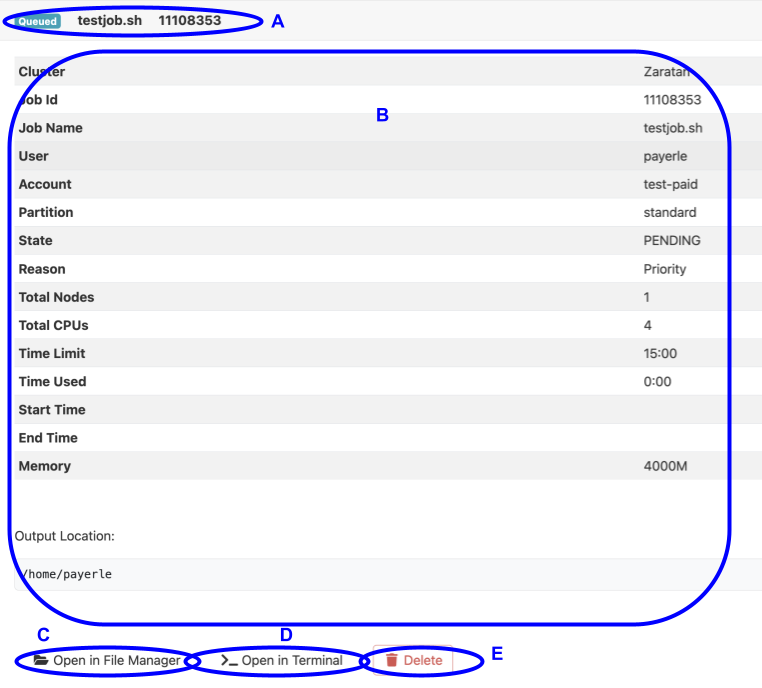
The top line, marked A in the screenshot, gives the status of the job, its name and the Slurm job ID. Below that, in the section marked B you will see more detailed information about the job. In addition to the fields described above, it includes the fields:
- State
- This is essentially the same as the Status field discussed
in the summary, but using the actual Slurm
state strings as would be return by
squeueand similar commands. - Reason
- This is a short description of why the job is in the current state. E.g., in the example, it is showing that the reason that the job is in the Queued/PENDING state is Priority (i.e. other jobs have higher priority).
- Total Nodes
- shows the total number of nodes allocated to the job.
- Total Cores
- shows the total number of cores allocated to the job.
- Time Limit
- shows the maximum wall time requested for the job.
- Time Used
- shows the amount of wall time used by the job, to date.
- Start Time
- shows when the job started. It is empty in this example as the job has not started yet
- End Time
- shows when the job ended (or is scheduled to end). Again, it is empty in this example as the job has not even started. as the job has not started yet
- Memory
- shows the amount of memory requested for the job
- Output Location
- shows the directory where the Slurm output files will be placed.
The Open in File Manager button (marked C in the
screenshot) will invoke the
OnDemand file manager on the Output location directory.
The Open in Terminal button (D in screenshot) will
open a command line terminal in a new
window/tab of your web browser, with the directory set to
the Output location directory. The Delete button
(marked E in the screenshot)) will cancel/terminate the
job.
Shell access
The OnDemand web portal can also provide shell access to the cluster login nodes. This is a convenient option to use if you do not have a native ssh client on your workstation, and in particular if you need to access the cluster from a public workstation.
Warning
If you ever use OnDemand from a public/shared system, always
be sure to completely exit the browser when you are finished.
Otherwise your login credentials could be stored in session
cookies, etc. and the next person to use the machine might be
able to access your accounts on the HPC clusters.
From the main OnDemand dashboard, select the Clusters drop-down
on the main top menu bar, and select the cluster
you wish to access. This will open a
shell terminal session in another browser tab.
When finished, you can just logout and close the browser tab.
Developer documentation
This section is still under devopment.
If you are interested in assisting DIT develop job templates for others in your field of research, please contact systems staff.